

You hit the power button and instead of your computer booting up normally — it beeps. Or the lights start flashing in a strange pattern and the screen stays completely black. It’s unsettling, and most people’s first instinct is to assume the worst.
Here’s the good news: those beeps and blinking lights are not random. They’re actually your computer’s built-in diagnostic system trying to tell you exactly what’s wrong. In this guide, I’ll break down what these signals mean, what causes them, and what you should (and shouldn’t) do when it happens.
What Are Computer Beep Codes?
Every computer runs a quick startup routine called POST — Power-On Self-Test — every single time you turn it on. POST checks that the core hardware components (CPU, RAM, graphics, storage) are working before the operating system even loads.
If something fails that check, the computer can’t display an error on screen because the screen itself may not be working yet. So instead, it falls back on two older communication methods:
- Beep codes — a series of short and long beeps from the system speaker
- LED blink codes — a pattern of flashing lights on the power button, caps lock key, or battery indicator
Each pattern corresponds to a specific hardware failure. The exact code varies by manufacturer — Dell, HP, Lenovo, ASUS, and others all have their own diagnostic languages — but the concept is universal.
The Most Common Causes of Beep and Light Codes
In my experience doing repairs, the same handful of problems come up again and again. Here’s what’s most likely going on:
1. RAM (Memory) Issues
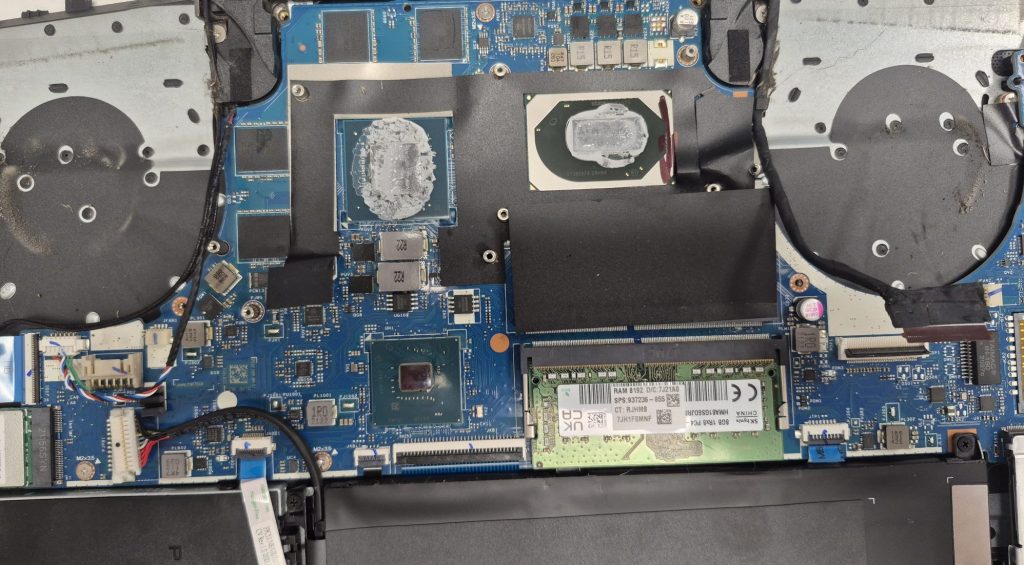
Memory problems are by far the most common cause of POST errors. If a RAM stick is loose, seated incorrectly, or has failed, your computer cannot complete startup. You’ll usually see:
- Repeating beeps (often 3 beeps in a loop)
- No image on screen even though fans are spinning
- Computer powers on but immediately powers back off
The fix is sometimes as simple as reseating the RAM — removing it and firmly clicking it back into place. If the module itself has died, it’ll need to be replaced.
2. Graphics Card (GPU) Problems
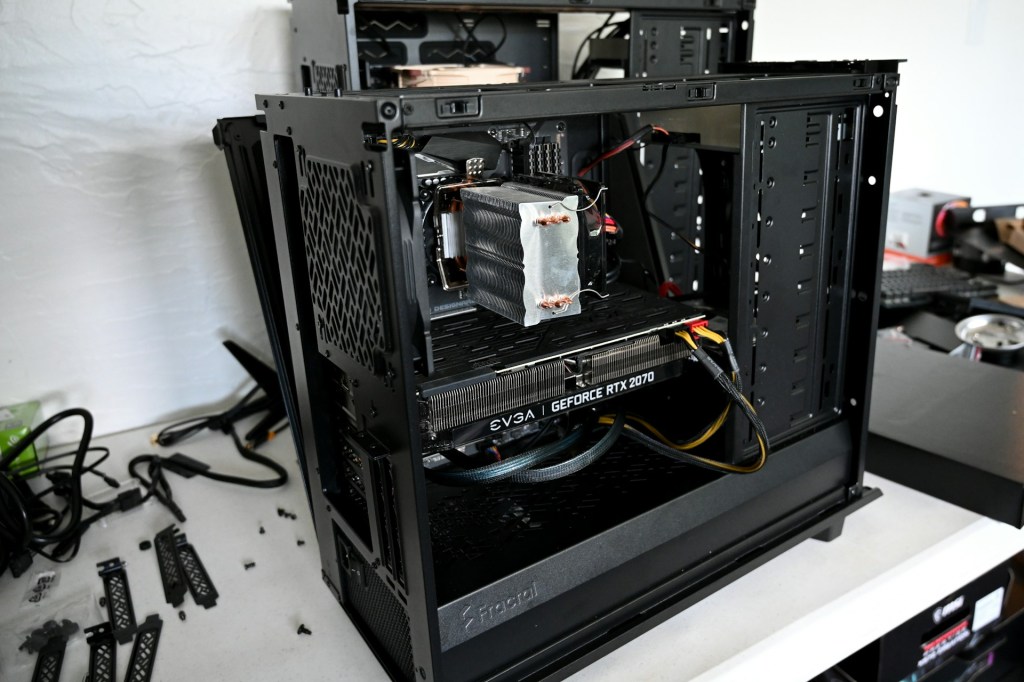
A beep pattern paired with a completely black monitor often points to the GPU. This is especially common on gaming desktops with dedicated graphics cards. Dust accumulation, a loose PCIe connection, or a power connector that’s come unplugged can all trigger a graphics-related POST error.
3. Motherboard or CPU Failure
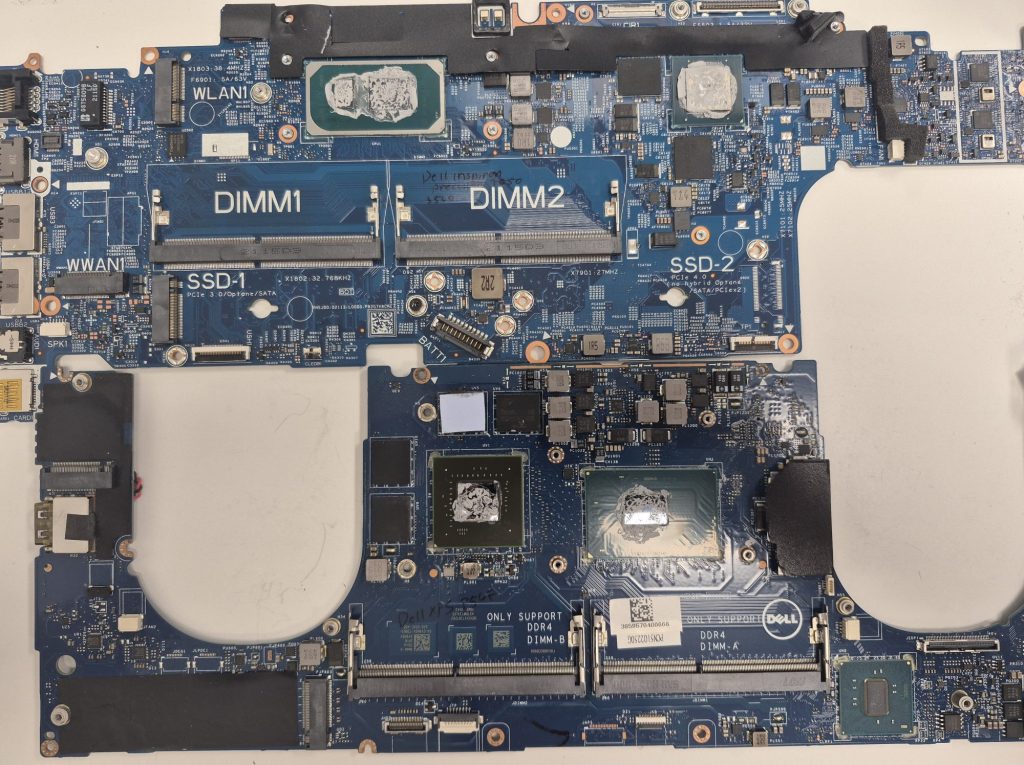
If you press the power button and nothing happens — no beeps, no lights, no fans — or if the system beeps continuously without any pattern, the motherboard or CPU could be at fault. These are among the trickier failures to diagnose because they can prevent power from reaching other components entirely.
4. BIOS / Firmware Issues
After a BIOS update or an unexpected power outage during startup, you might see unusual beep codes or blinking lights as the system attempts to re-initialize its firmware. This doesn’t always mean hardware is broken — sometimes the BIOS just needs to be reset or re-flashed. But if left unchecked, corrupted firmware can cause persistent boot failures.
5. Loose Connections After Moving the Computer
This one surprises a lot of people. Moving a desktop tower — even just sliding it across the floor to vacuum — can jostle internal components just enough to break a connection. A RAM stick that shifts by a millimeter in its slot can be enough to trigger a full POST error. The computer sounds like it’s dying, but the real fix takes about 30 seconds.
What About Blinking Lights Instead of Beeps?
Laptops and some modern desktops use LED blink patterns instead of audio beep codes — or in addition to them. The logic is the same: a specific number and rhythm of flashes maps to a specific hardware problem.
You might notice:
- The power button flashing in a pattern (e.g., two short flashes, pause, repeat)
- The Caps Lock or Num Lock key blinking (common on HP laptops for RAM/motherboard errors)
- The battery indicator cycling through colors or patterns on Dell and Lenovo systems
The key takeaway: count the flashes and look up the pattern in your manufacturer’s documentation (or bring it in — that’s exactly the kind of thing I look up first).
Should You Be Worried? Here’s How to Tell
Not every beep code means disaster. A lot of them are preventive alerts — the system catching a loose connection before it causes real damage. That said, some situations do call for urgency.
Lower urgency — often a quick fix:
- Started after moving or cleaning the computer
- Only happened once and booted fine after restarting
- Occurred right after adding new RAM or other hardware
Higher urgency — get it looked at soon:
- The same pattern repeats every single time you power on
- The system won’t boot even after reseating RAM and reconnecting cables
- You hear continuous beeping with no pattern at all
- There’s a burning smell or visible damage on the board
One thing I always tell customers: don’t keep powering the machine on and off hoping it’ll fix itself. Repeated power cycling can sometimes make things worse, especially if there’s an underlying electrical issue.
How We Diagnose Beep and Light Codes at Our Shop
When a computer comes in beeping or flashing, here’s the actual process I go through — no guesswork involved:
- Physical inspection first: I look for loose RAM, disconnected cables, signs of electrical damage, or anything that got jostled.
- Code lookup: I identify the exact beep or blink pattern and cross-reference it with the manufacturer’s diagnostic documentation.
- Component-level testing: RAM, GPU, and storage devices get tested individually to confirm or rule out specific failures.
- BIOS recovery if needed: If firmware corruption is suspected, I perform a reset or re-flash.
- Repair or replacement: Once the root cause is confirmed, I fix or replace only what’s actually broken — no unnecessary parts.
- Full boot test: The machine has to complete POST cleanly and boot into the OS before it leaves the shop.
My goal is always to be transparent about what I find. If the repair is straightforward and affordable, I’ll tell you. If the repair cost approaches what the machine is worth, I’ll tell you that too.
When Repair Might Not Be Worth It
Sometimes beep or light codes point to a failed CPU or a dead motherboard — and on an older system, replacing those components can cost more than the machine is worth. When that’s the situation, I always give clients an honest assessment of both options: repair vs. replacement.
If moving to a new machine makes more sense, I can still help by recovering your data from the old drive and making sure nothing important is lost in the transition. And when it comes to the old hardware, we can help you recycle it responsibly.
Frequently Asked Questions
Can I fix beep code errors myself?
Sometimes. If the error happened after moving the computer or installing new hardware, reseating the RAM or reconnecting cables is a reasonable first step. But if you’re not comfortable opening up a computer, or if the error persists after basic troubleshooting, it’s best to bring it in.
Will I lose my data if my computer is beeping?
Not necessarily. Beep codes usually indicate a hardware startup failure, which doesn’t automatically mean your storage drive is damaged. In most cases, your data is still intact and recoverable. That said, don’t delay — repeated power cycling with a failing component can sometimes cause secondary damage.
How do I look up what my beep code means?
You’ll need to know your computer’s brand and sometimes the BIOS manufacturer (AMI, Award, Phoenix). Search for “[brand] beep codes” or “[brand] LED diagnostic codes” and match your pattern. Or just note the pattern and bring it in — that’s literally the first thing I look up.
Bottom Line
Computer beeps and blinking lights are not your machine giving up on you — they’re it asking for help in the only language it has available at that moment. These diagnostic codes exist to make repair faster and more precise, which is good news for your wallet and your data.
When it happens, the smartest move is to note the pattern, avoid repeated power cycling, and get a professional diagnosis. In a lot of cases, the fix is simpler (and cheaper) than the sound makes it seem.
If your computer is beeping or flashing and you’re in the Downtown, Los Angeles area, bring it in. I’ll tell you exactly what it’s saying and what it’ll take to fix it.
 ITBrother