

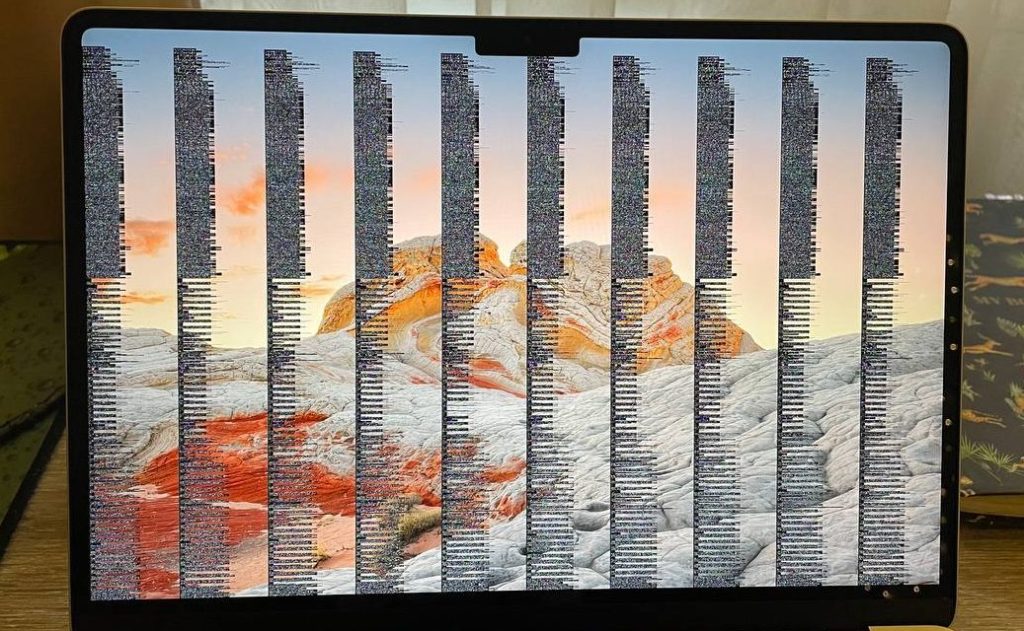
When a MacBook screen starts to flicker, flash, or show strange static-like patterns, it’s easy to assume the display is on its way out. You might see random black squares, distorted lines, or horizontal flickers that appear and disappear — sometimes subtle, sometimes covering the entire screen.
At first, it may seem like a small annoyance. But for anyone who’s experienced it firsthand, display artifacting and glitching can make even simple tasks frustrating. And unfortunately, the cause isn’t always obvious — it could be the screen, the cable, or even deeper inside the logic board.
Recently, I worked with a client who brought in a 16-inch MacBook Pro that perfectly illustrated this issue. He mentioned seeing a “small glitch near the bottom of the screen,” something barely noticeable. But when I powered on the laptop, the entire display was flickering with small black boxes and static-like noise across the panel.
This kind of issue is surprisingly common — especially among certain MacBook models — and diagnosing the root cause requires a careful, step-by-step process.
What Display Artifacting Looks Like
Before we dive into causes, let’s clarify what artifacting actually means.
“Artifacting” refers to visual errors or glitches that appear on your screen that aren’t supposed to be there. These can include:
- Random black or colored boxes
- Horizontal or vertical lines
- Flickering or flashing patches
- Distorted images or static
While these symptoms are visible on the screen, the source of the problem could come from multiple areas of the system — not just the display itself.
The Most Common Causes of MacBook Screen Glitching
When a MacBook display begins to malfunction, there are a few key areas that every technician checks before reaching any conclusions. Let’s go through them one by one.
1. Display Cable Fatigue (the “Flexgate” Problem)
One of the most overlooked causes of display glitches is a failing display cable — the thin, flexible connector that links your MacBook’s display to the logic board.
In some MacBook models (especially 2016–2019 13” and 15” MacBook Pros), the display cable passes through the hinge area. Each time you open or close the lid, that cable bends slightly. Over hundreds or thousands of cycles, the cable can weaken or start to separate internally — causing flickering, backlight failures, or full-on artifacting.
This issue even became well-known enough to be nicknamed “Flexgate.”
Here’s what usually happens:
- The display glitches when you move or adjust the screen angle
- The flickering stops if you barely tilt the screen open
- The display cable connection loosens or develops micro-tears
In mild cases, reseating the cable (disconnecting and reconnecting it properly) can fix the issue. But if the cable itself is damaged, the entire display assembly must be replaced because Apple integrates the cable into the screen unit — it’s not a separate, replaceable part.
This repair is more involved but completely fixable. It’s also far cheaper than replacing the whole MacBook.
2. Software or macOS Glitches
Not all display problems are hardware-related. Occasionally, macOS updates can introduce temporary bugs that affect how the system handles graphics output.
After a major macOS version update, users sometimes report flickering screens, strange color artifacts, or graphical lag. This usually happens when the software doesn’t properly communicate with the Mac’s integrated or discrete graphics processor.
In these cases, the solution can be as simple as:
- Resetting the NVRAM and SMC (system management controller)
- Booting into Safe Mode to isolate third-party extensions
- Reinstalling or rolling back macOS to a stable version
If the problem began right after an update, it’s a good sign that the issue is software-level rather than physical damage. Apple often resolves these bugs in follow-up patches.
3. Logic Board or GPU Damage
If it’s not the cable or software, the next place to look is the logic board — the heart of the MacBook that contains the CPU, GPU, and power circuitry.
Modern MacBooks are incredibly compact, and that comes at a cost: heat. Over time, sustained high temperatures can cause thermal stress on solder joints and power components, especially near the GPU (graphics processing unit).
When that happens, you might see:
- Constant flickering even when the screen angle doesn’t move
- Distortion during startup or before macOS loads
- Artifacts that appear when the system gets hot
At this point, diagnosis requires more in-depth testing and sometimes board-level repair — identifying and replacing damaged power circuits, connectors, or graphics-related components on the board itself.
While logic board repair takes more time and skill, it’s often more cost-effective than replacing the entire board or laptop.
4. Other Possibilities: Power or Connector Damage
Although less common, liquid damage, corrosion, or shorted connectors can also create intermittent display issues. Even minor liquid exposure can cause tiny amounts of oxidation near the display connector, interrupting the signal.
Technicians will inspect under a microscope to check for this type of damage — and in some cases, a thorough cleaning or minor board rework can bring the display back to life.
How I Approach MacBook Display Glitch Repairs
At ITBrother, I handle MacBook display issues with a structured, evidence-based approach to avoid unnecessary part replacements. Here’s how I typically go about it:
- Initial Assessment – I check for physical damage, screen pressure marks, or cracks. If none are visible, we move to internal causes.
- Connection and Cable Check – I open the device and inspect the display cable for looseness or strain. If the cable looks intact, I reseat it and test again.
- Software Testing – I run macOS diagnostics, reset SMC/NVRAM, and test under Safe Mode. If the problem disappears temporarily, it’s likely software-related.
- Logic Board Diagnosis – If the issue persists, I test the board for power irregularities or GPU faults using professional diagnostic tools.
- Repair or Replacement – Depending on the cause, I either repair the board, replace the display assembly, or reinstall the operating system.
In every case, I also back up user data before major repairs or reinstallations to ensure nothing is lost during service.
When It’s Time to Repair
Once we identify the root cause, it usually comes down to one of three outcomes:
- Cable Reseat or Replacement – Quick, affordable, and completely repairable.
- Display Assembly Replacement – More costly but restores the screen to factory condition.
- Logic Board Repair – A deeper fix that’s often worth it, especially on newer models with high resale value.
If the cost of repair exceeds the MacBook’s current value, I always discuss honest options — including data backup, trade-in, or certified e-waste recycling.
Final Thoughts
MacBook display artifacting and glitching can look like a major failure, but in most cases, it’s a repairable problem. Whether it’s a simple display cable issue or a more complex logic board fault, careful diagnosis can make the difference between saving your MacBook and replacing it entirely.
At ITBrother, I specialize in identifying these issues quickly and providing straightforward repair options. From cleaning internal connections and reseating cables to reinstalling macOS or performing board-level repairs, every solution is tailored to what’s actually wrong — not guesswork.
If your MacBook screen is flickering, glitching, or showing strange patterns, don’t panic and don’t toss it yet. Bring it in for a full diagnostic — chances are, it’s fixable.
 ITBrother