

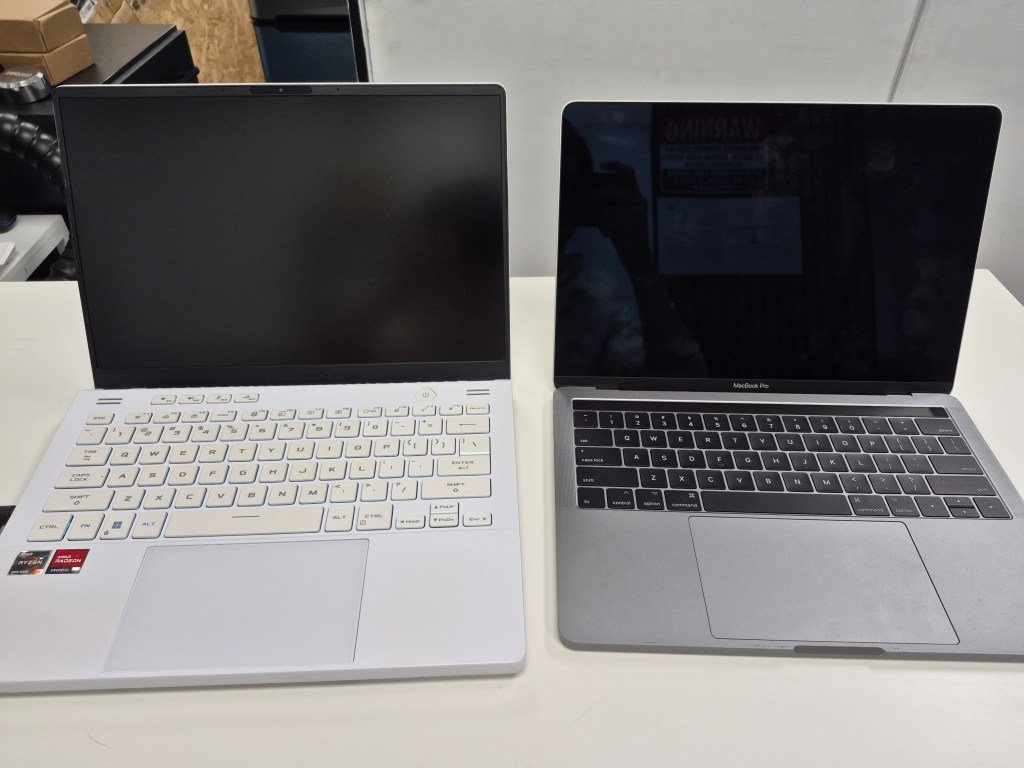
After 8+ years of working in a computer repair shop environment in Los Angeles, I’ve seen just about every problem a PC or Mac can throw at someone. Some issues are dramatic — a laptop that sparks and dies. Others are subtle — a machine that just gets slower and slower until one day it stops. But most of the time, the problems we see and fix fall into a surprisingly short list of repeat offenders.
If your computer is acting up, there’s a good chance it’s one of the issues I’ll walk through below. I’ll cover what causes each problem, what your real options are, and when it’s worth repairing versus replacing.
Common Windows PC Problems
Windows machines are everywhere — homes, offices, schools — which also means we see more of them in the shop. Here are the issues that come through our door most often.
1. Blue Screen of Death (BSOD)
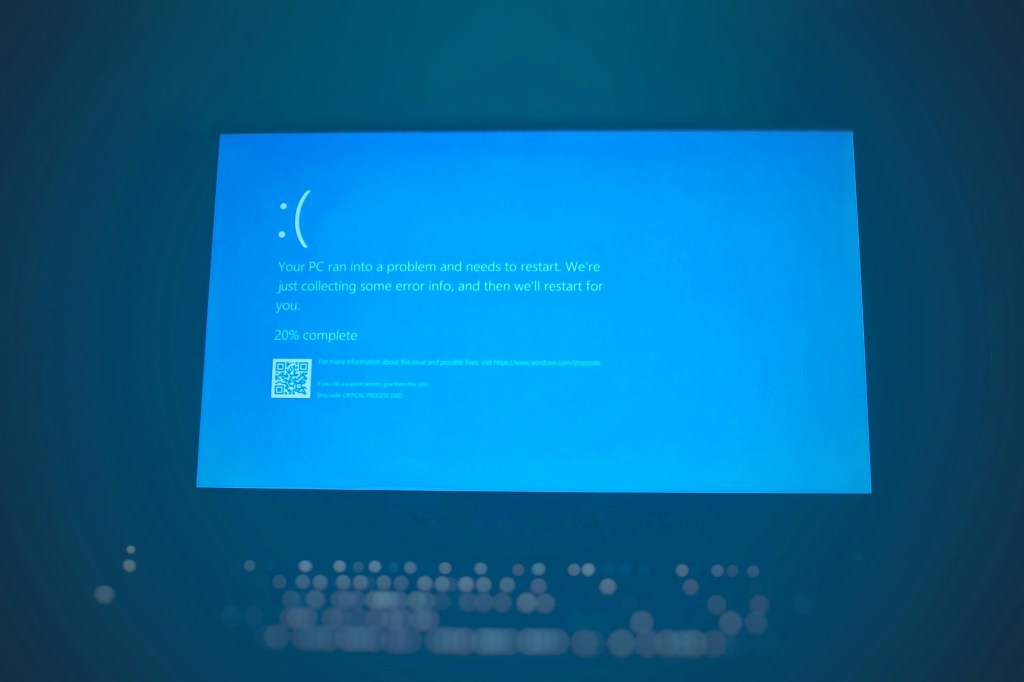
The infamous blue screen is Windows’ way of saying something went seriously wrong. It can be triggered by a lot of things:
- A Windows update that didn’t finish cleanly
- A driver conflict or corrupt driver
- Failing hardware (RAM is a common culprit)
- A new software installation that clashes with existing programs
Sometimes Windows recovers on its own. Sometimes it doesn’t. When it doesn’t, you’re looking at a repair or, in bad cases, a full OS reinstall.
Tip: When you see a BSOD, take a photo of the screen before it restarts. The error code on that screen tells us a lot — it can cut our diagnosis time in half.
2. “Boot Device Not Found” or Black Screen on Startup
You press the power button, and instead of Windows loading, you get a black screen with a message like “Boot device not found” or “No bootable device.”
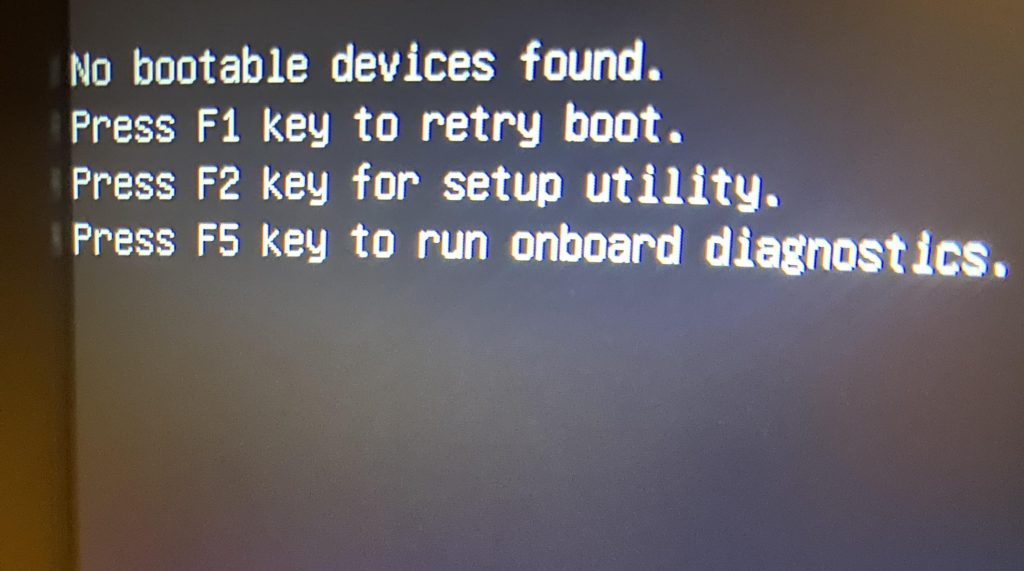
Most of the time this means the hard drive or SSD has failed. The computer is looking for Windows, can’t find it, and gives up. Replacing the drive and reinstalling Windows usually solves it — but data recovery is a different story. Getting files off a dead drive is roughly a 50/50 shot, and professional data recovery services are expensive.
Less commonly, the issue is a BIOS setting that got changed. Either way, this one needs a visit to the shop.
3. Computer Powers On but No Picture on Screen
Fans spin. Lights come on. But the monitor stays black. This is especially common with custom-built desktops.
What’s happening is a POST failure — Power On Self Test. Every time your PC starts, it runs a quick check on all its major components. If something fails that check (often RAM or a graphics card that’s loose or dead), it stops right there and gives you nothing.
For experienced builders, reseating components sometimes fixes it. For everyone else, it’s time to bring it in.
4. Computer Won’t Power On at All
No fans, no lights, no beeps — nothing. This is one of the hardest problems to diagnose remotely because there’s no feedback at all.
The culprit is usually one of three things:
- Dead power supply (best-case scenario — relatively cheap to replace)
- Failed motherboard
- Damaged CPU
I’ll be honest with you: on older machines, the cost of parts and labor sometimes exceeds the value of the computer. When that’s the case, I’ll tell you — rather than pursuing on a repair that doesn’t make financial sense.
Common Mac Problems
Macs have a reputation for stability, and in many ways it’s earned. But they’re not immune to problems — and when they do break, Apple’s design choices can make repairs significantly more expensive than on a Windows machine.
1. Cracked or Broken Screen
Screen damage is the number one Mac repair we do, especially on MacBooks. Drops, pressure in a bag, closing the lid with something on the keyboard — the causes are endless.
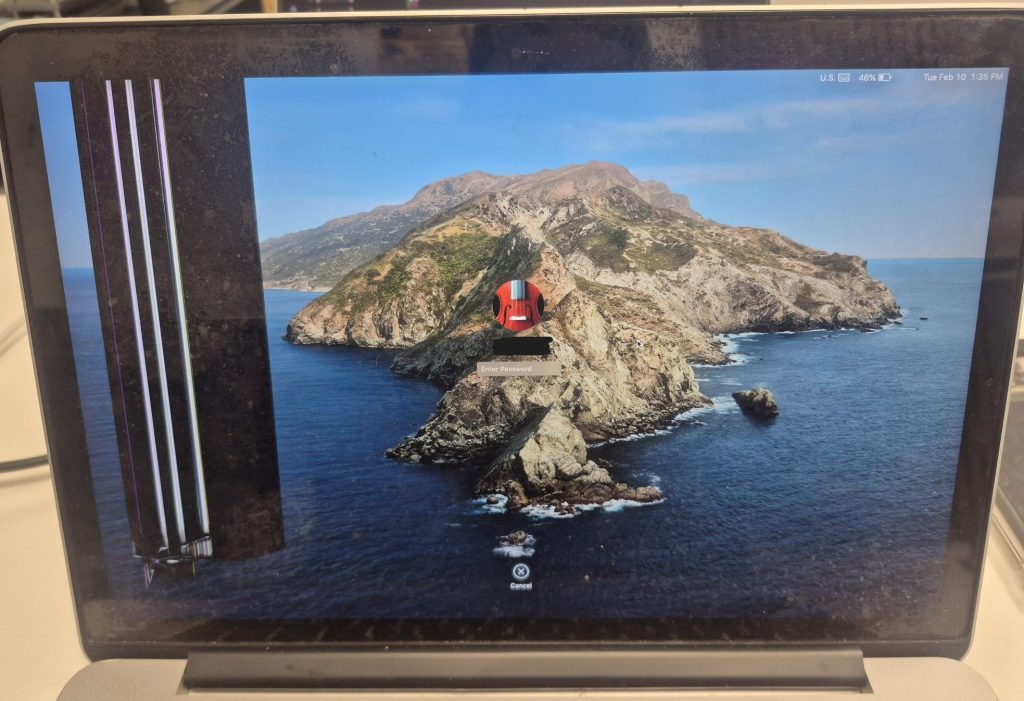
The expensive part: on most MacBooks, the display is fused to the entire top lid assembly. You can’t just swap out the panel the way you can on many Windows laptops. The whole lid has to come off, which drives up both parts and labor costs significantly.
2. Liquid Damage
I see more liquid-damaged Macs than any other type of laptop — coffee, water, juice, you name it. Once liquid gets inside, the outcome is unpredictable.
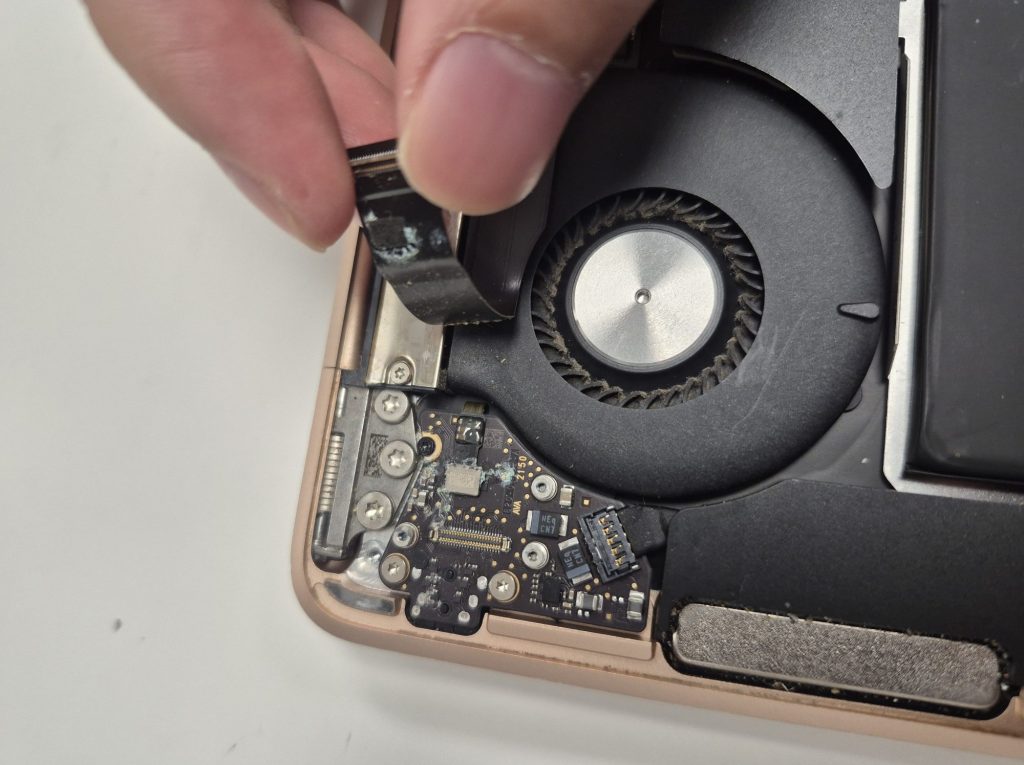
The severity depends on:
- What was spilled (water causes less damage than sugary or acidic drinks)
- How much got in
- Where it landed on the board
Even if a liquid-damaged Mac powers back on, you’re not necessarily in the clear. Corrosion can set in over days or weeks, and components like the keyboard, trackpad, or Wi-Fi card may work fine at first — then fail. If you’ve spilled on your Mac, bring it in sooner rather than later. The faster we can clean the board, the better the odds.
3. Mac Won’t Turn On
A Mac that refuses to start is one of the more serious situations we see. It usually falls into one of two patterns:
- The Mac was working fine, then just didn’t turn on the next day
- It shut down mid-use and never came back
Both usually point to hardware failure. Apple’s tight integration — soldered RAM, soldered storage, proprietary chips — makes these repairs harder and pricier than they should be. Sometimes repair is the right move. Sometimes the cost pushes people toward a new machine. We’ll walk you through the math either way.
Why Do These Problems Keep Happening?
Computers are complex machines with dozens of parts that depend on each other. One failure cascades into another. And modern design trends — thinner, lighter, more integrated — often trade repairability for aesthetics.
Windows PCs tend to break because of variety — countless brands, component combinations, and builds mean more opportunities for something to conflict or fail.
Macs tend to break because of design constraints — premium materials and tight engineering look great but leave little room for repairability when something goes wrong.
In both cases: regular maintenance, careful handling, and acting quickly when something seems off can extend your computer’s life significantly.
Final Thoughts
Whether you’re on Windows or Mac, most of the problems I’ve described here are fixable — often for less than you’d expect. The key is not waiting. A slow computer that gets ignored becomes a dead computer. A liquid spill that gets cleaned up in a few hours has a much better outcome than one that sits for a week.
My advice after working in this industry for 8+ years is simple: back up your data today (not later), handle your machine with care, and don’t try to fix hardware problems yourself unless you really know what you’re doing. The cost of a botched DIY repair is usually higher than the original problem.
Need Computer Repair in Los Angeles?
If your PC or Mac is giving you trouble, we’re here to help. We work on everything from slow laptops and failed hard drives to liquid damage and screen replacements — and we’ll always give you an honest assessment before we do any work.
Give us a call, send us a message, or stop by our shop located in Downtown, Los Angeles. Most diagnostics are free, and we’re happy to answer questions even if you’re not sure whether it’s worth repairing.
