

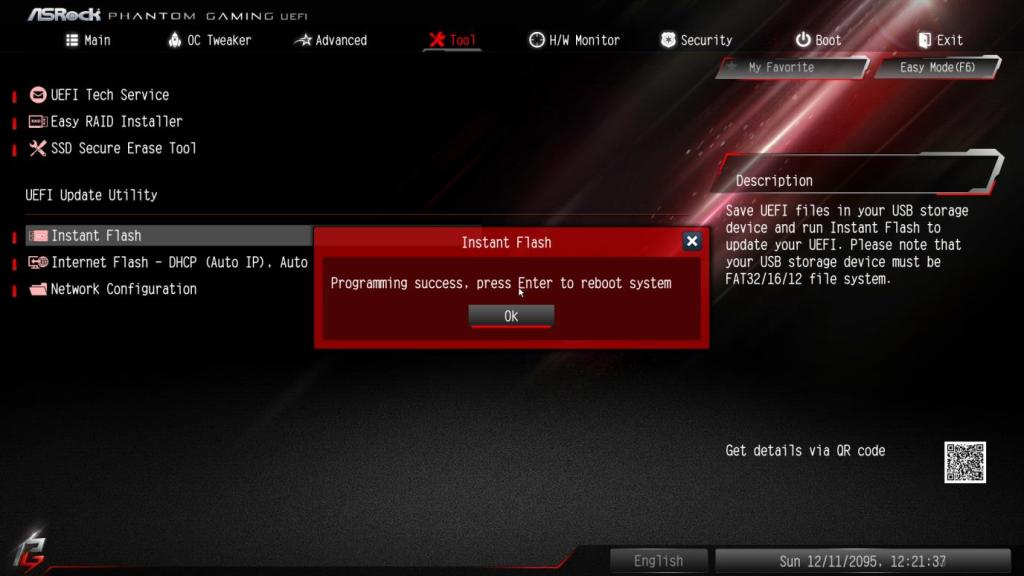
When people hear the term BIOS update or firmware update, there’s often a sense of unease — and for good reason. For many, it’s that one mysterious process that could either fix a problem or completely brick a system. If something goes wrong during the update — like a power loss, a crash, or user interruption — the system may become completely unusable.
But why does that happen? Why are BIOS or firmware updates so sensitive, and should you even bother performing them at all?
Let’s break down what these updates actually do, why they exist, and when it makes sense (and when it doesn’t) to install them.
1. What Exactly Is a BIOS or Firmware Update?
To understand BIOS updates, we first need to understand what the BIOS actually is.
BIOS stands for Basic Input/Output System — it’s a small piece of software stored on a chip on your motherboard that initializes your computer’s hardware before your operating system (Windows, macOS, Linux, etc.) loads. In more modern systems, the BIOS has evolved into what’s called UEFI (Unified Extensible Firmware Interface), but the concept remains the same: it’s the bridge between your hardware and software.
A firmware update is very similar in nature — it’s low-level software that controls how specific hardware components operate. This includes things like SSDs, network cards, graphics cards, and even your laptop’s touchpad or battery controller. Firmware updates modify or improve how these devices behave on a fundamental level, often fixing bugs or improving compatibility.
When you perform a BIOS or firmware update, you’re not just installing another software patch — you’re rewriting the instruction set that tells the hardware how to function. That’s why any interruption during this process can cause major issues. If the code being written to the chip is incomplete or corrupted, the motherboard won’t know how to start up anymore, leaving the system “bricked.”
2. Why BIOS/Firmware Updates Exist
The main purpose of these updates is to fix bugs, improve system stability, or add support for new hardware.
Here are the most common reasons manufacturers release BIOS or firmware updates:
- Hardware Compatibility:
Newer processors, RAM modules, or storage devices may not work properly with older BIOS versions. An update can add support for newer CPUs or improve compatibility with faster memory. - System Stability and Bug Fixes:
Sometimes a system might randomly freeze, reboot, or fail to recognize certain components. These issues can stem from how the BIOS interacts with the hardware. Updating it can fix those deep-level conflicts that no driver or OS patch can resolve. - Security Enhancements:
In recent years, BIOS and firmware updates have become crucial for addressing vulnerabilities like Spectre and Meltdown. These updates can patch security holes in the firmware layer that malware could potentially exploit. - Feature Additions:
Occasionally, BIOS updates introduce new functions — such as better fan control, thermal management, or new boot modes. For business laptops, they may add features like enhanced password protection or hardware-based encryption settings.
3. The Risks Involved
Despite their benefits, BIOS and firmware updates carry more risk than a normal software update. The reason is simple: if something interrupts the flashing process, the motherboard might lose its ability to boot.
The most common causes of BIOS update failures include:
- Power interruptions during the update
- User error — shutting off the computer prematurely
- Using the wrong BIOS file for the motherboard model
- Faulty USB drives or corrupted update files
Once the BIOS chip becomes corrupted, the system can’t initialize hardware or even access the display. Some modern motherboards have built-in dual BIOS chips or recovery features that can restore functionality, but on laptops and older desktops, a failed BIOS update often requires reflashing the chip manually using specialized tools — something only repair shops typically handle.
4. When Should You Update the BIOS or Firmware?
For most users, updating the BIOS isn’t something that needs to be done regularly. Unlike operating system or driver updates, BIOS updates don’t bring visible improvements unless they target a specific issue you’re experiencing.
In other words:
If your system is running smoothly, you probably don’t need to update the BIOS.
However, there are a few cases where updating is worthwhile or even necessary:
- New Hardware Installation:
If you’re upgrading your CPU, RAM, or storage and the system doesn’t recognize the new part, a BIOS update may add compatibility. - System Instability or Boot Issues:
Random crashes, freezes, or detection errors with USB or PCIe devices can sometimes be traced back to outdated BIOS firmware. - Manufacturer-Recommended Security Fixes:
If the manufacturer explicitly lists “security update” in the release notes, it’s often worth applying. - Battery or Fan Control Problems (on Laptops):
Some BIOS updates adjust how the system manages thermals or power delivery, which can improve overheating or charging behaviors.
That said, you should always check the release notes before updating. If the update doesn’t mention anything that applies to your situation, it’s generally safer to leave it alone.
5. When a BIOS Update Goes Wrong
Even with precautions, sometimes an update can fail. When that happens, the computer may power on but show no display, or the fans may spin without any response from the system.
At this stage, recovery depends heavily on the system’s design. Some laptops and motherboards have a BIOS recovery mode or crisis recovery jumper that allows reflashing a backup BIOS image. Others may require specialized tools to reprogram the BIOS chip directly on the motherboard.
If your system has failed a BIOS update, it’s best not to attempt further restarts — continued attempts can worsen the issue. This is where professional repair service comes in.
6. How We Handle BIOS and Firmware Issues
At our repair shop, we regularly assist clients with systems that failed during BIOS or firmware updates. Here’s how we approach the issue:
- Backup and Diagnostics:
We first confirm whether the BIOS chip is truly corrupted and, if possible, back up any remaining data. - Chip-Level Reflashing:
Using specialized EEPROM programmers, we can reflash the BIOS chip directly with the correct firmware file for your specific motherboard model. - Firmware Recovery for Embedded Devices:
For systems where firmware issues affect other components (like touchpads, SSDs, or charging controllers), we can reprogram those chips as well if parts are available. - Preventative Setup:
After recovery, we verify that the system boots properly, reapply the latest stable BIOS version, and test hardware stability.
We also advise customers on whether future BIOS updates are worthwhile or best avoided based on their hardware’s age and purpose.
7. Final Thoughts
BIOS and firmware updates are an essential part of maintaining hardware compatibility and system stability — but they’re not something to take lightly. When done correctly, they can fix obscure hardware bugs, enable new processors, or improve overall reliability. When done incorrectly, they can render your system unusable.
If you’re unsure whether a BIOS update is right for your device, it’s always best to consult with a technician first. At our shop, we can determine whether updating the BIOS is necessary, handle the update safely, or restore a system that failed during the process.
 ITBrother
Leave a comment