

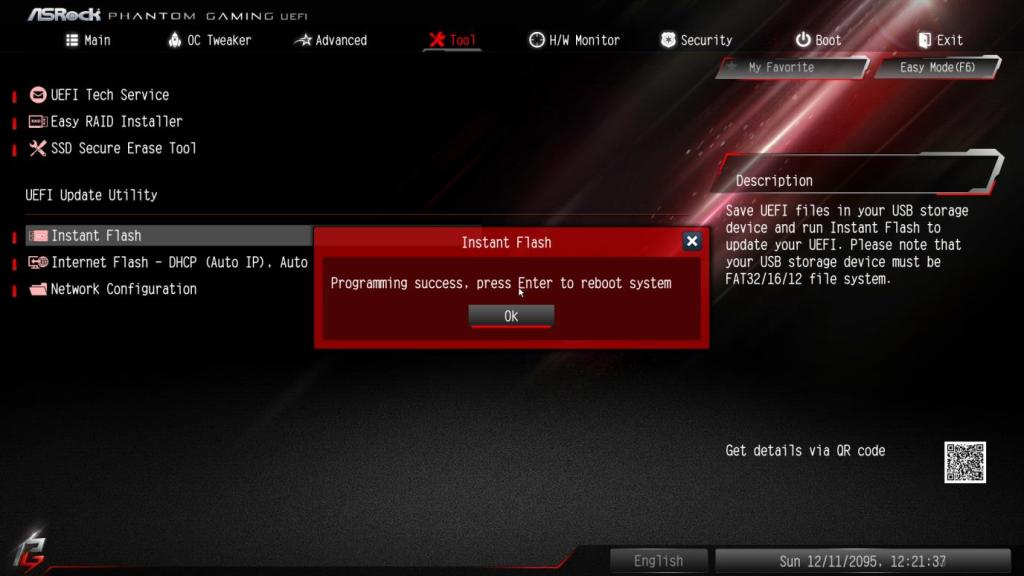
If you’ve ever seen a notification for a BIOS update and felt a little uneasy about clicking it, you’re not alone. BIOS and firmware updates have a reputation for being risky — and honestly, that reputation is partially deserved. Unlike a regular Windows update, a failed BIOS update can leave your computer completely unresponsive, even before the operating system loads.
That said, these updates exist for good reasons. In this guide, we’ll explain what BIOS and firmware updates actually are, when you should (and shouldn’t) install them, what to do if something goes wrong, and how our repair shop can help if you’re already dealing with a failed update.
What Is a BIOS or Firmware Update?
The BIOS — which stands for Basic Input/Output System — is a small piece of software stored on a chip on your motherboard. It’s the very first thing that runs when you press the power button, before Windows, macOS, or Linux ever loads. Its job is to check your hardware (processor, RAM, storage) and hand things off to the operating system.
Most modern computers have replaced the traditional BIOS with something called UEFI (Unified Extensible Firmware Interface), but the function is essentially the same. You’ll still hear people refer to it as the BIOS, and that’s fine.
Firmware updates are similar but apply to specific hardware components rather than the motherboard itself. SSDs, network cards, graphics cards, laptop batteries, and even touchpads can all have firmware that manufacturers update over time.
When you install a BIOS or firmware update, you’re rewriting the instructions stored on a physical chip. This is why any interruption during the process — a power outage, a crash, a mistaken shutdown — can leave that chip with corrupted or incomplete code. Without a working BIOS, the computer doesn’t know how to start, which is what people mean when they say a system got “bricked.”
Why Do Manufacturers Release BIOS and Firmware Updates?
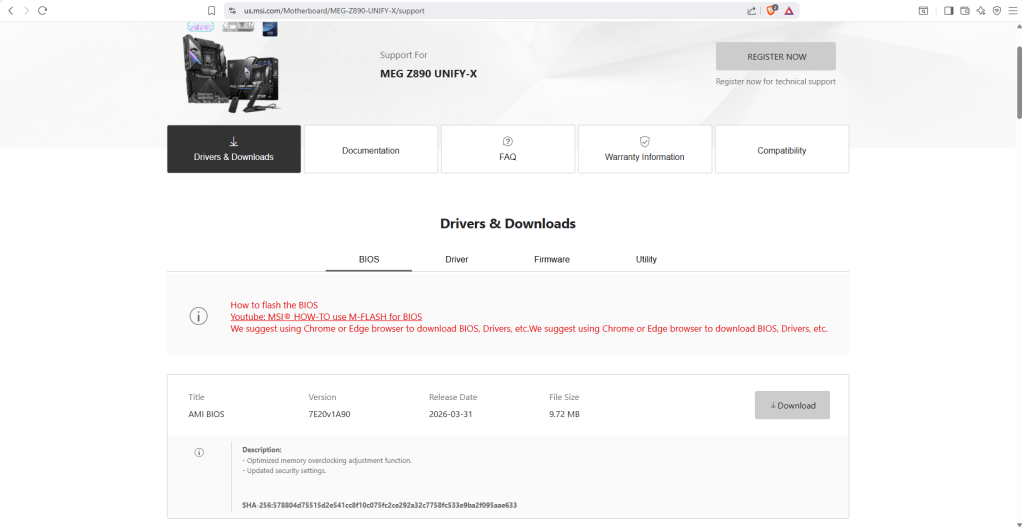
Manufacturers don’t release these updates just to keep things fresh. There’s always a specific reason, and the release notes will usually tell you what it is. The most common reasons include:
- Hardware Compatibility: New processors and RAM modules sometimes require a BIOS update before the motherboard will recognize them. If you’ve just swapped in a new CPU and the computer won’t boot, this is often why.
- Stability and Bug Fixes: Occasional freezes, random reboots, or devices that stop being detected can sometimes be traced to how the BIOS communicates with certain hardware. An update can resolve these issues at a level that no driver or OS update can reach.
- Security Patches: Some vulnerabilities — like the widely reported Spectre and Meltdown flaws — require fixes at the firmware level. These aren’t things Windows can patch on its own.
- Feature Improvements: Some updates add support for better fan control, improved power management, or new boot options. On business laptops, BIOS updates may unlock hardware-level security features.
Should You Update Your BIOS? The Honest Answer
For most people, most of the time: no. If your computer is running well, there’s no compelling reason to update the BIOS. This isn’t like keeping your browser up to date — BIOS updates are not routine maintenance. They’re targeted fixes for specific problems.
With that said, there are situations where updating is the right call:
- You’re installing new hardware (especially a new CPU or RAM) and the system doesn’t recognize it
- You’re experiencing unexplained crashes, boot failures, or device detection issues that drivers and OS updates haven’t fixed
- The manufacturer specifically lists a security vulnerability in the release notes
- Your laptop has overheating or charging problems and the update targets thermal or power management
Always read the release notes before updating. If none of the listed changes apply to your situation, it’s generally safer to skip the update entirely.
What Can Go Wrong During a BIOS Update?
The risks are real, but they’re also avoidable with the right precautions. Here are the most common causes of BIOS update failures:
- Power going out or the laptop battery dying mid-update
- The computer being shut down or restarted before the process completes
- Using the wrong BIOS file for your specific motherboard model or revision
- A corrupted or faulty USB drive used to deliver the update
If a BIOS update fails, the computer may power on but show nothing on screen, or it may not respond at all. Some modern motherboards have a dual-BIOS chip that can automatically fall back to a backup. Many laptops and older desktops don’t have this safety net, which means recovery requires physical access to the BIOS chip itself.
One important note: if your system fails a BIOS update, avoid continuing to power-cycle it. Repeated restart attempts can sometimes make the situation harder to recover from. Power it down and reach out to a professional.
How to Update Your BIOS Safely (If You’ve Decided to Proceed)
If you’ve read the release notes, confirmed the update applies to your situation, and decided to move forward, here’s how to reduce the risk:
- Download the file directly from the manufacturer’s website. Don’t use third-party sources. Make sure the file matches your exact motherboard model and revision number.
- Use a reliable USB drive. If you’re flashing from USB, format it fresh and copy only the BIOS file.
- Plug into wall power. Never update BIOS on battery power alone. Plug your laptop in and make sure the power supply is stable.
- Don’t touch the computer during the update. Once it starts, let it finish completely. This usually takes a few minutes.
- If you’re not sure, ask. A quick consultation with a technician can save you from a costly recovery job.
How We Help With BIOS and Firmware Issues at Our Shop
We work on BIOS-related issues regularly, both proactive updates and failed ones. Here’s what that looks like in practice:
- BIOS recovery referrals: If your system has suffered a failed BIOS update and software-based recovery isn’t possible, chip-level reflashing may be required. This is a specialized service that not all shops offer — we’ll give you an honest assessment of what’s needed and point you in the right direction if it’s beyond what we can take on.
- Safe, guided updates: If you want to update your BIOS but don’t feel confident doing it yourself, we can verify the correct file for your hardware, perform the update, and confirm the system is stable afterward.
- Honest advice: We’ll always tell you whether a BIOS update is actually warranted for your device. If it’s not, we’ll tell you that too — no unnecessary work.
Final Thoughts
BIOS and firmware updates are a normal part of a computer’s life, but they’re not something to do casually. When they’re needed, they can fix problems that nothing else will. When they’re not needed, they’re an unnecessary risk.
Our general advice: read the release notes, only update if something on the list applies to you, and always take precautions with power and file integrity. If you’re unsure, bring it to us. We’d rather spend 10 minutes answering your questions than have you bring in a bricked machine later.
Have questions about a specific BIOS update, or already dealing with a system that failed one? Get in touch with us or stop by our shop in Downtown, Los Angeles — we’re happy to help.
 ITBrother