

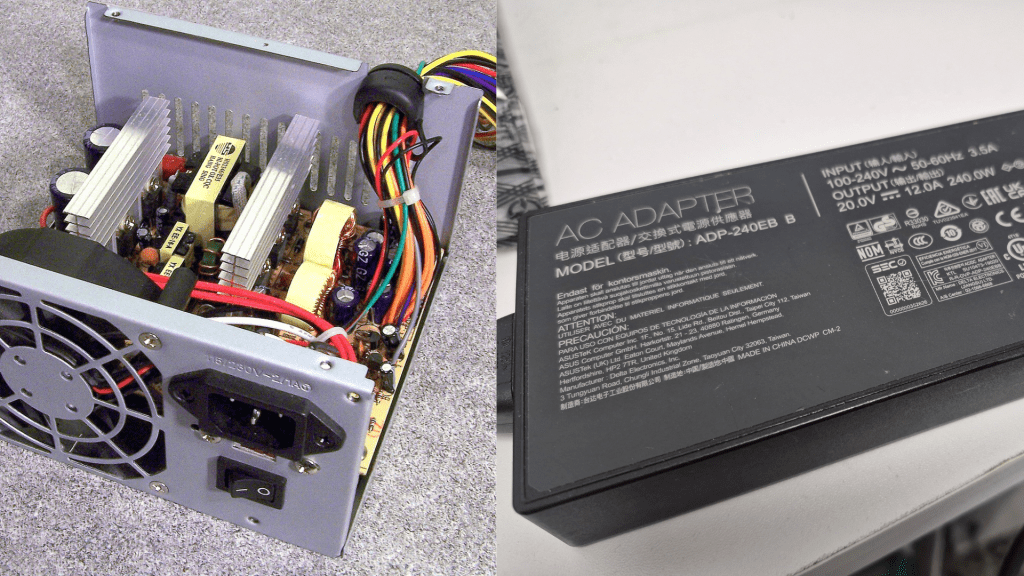
A loud pop, a burning smell, or a computer that suddenly won’t turn on — here’s what’s happening inside your machine and what you can do about it.
If your computer just made a loud popping noise, you’re probably panicking — and understandably so. A sudden pop, spark, or burning smell coming from your PC or laptop is one of the more alarming things that can happen to your hardware. The good news: it doesn’t automatically mean everything is gone. The bad news: it does mean something failed, and you’ll want to act carefully from here.
This guide breaks down what causes a power supply “pop,” what kind of damage it can cause to the rest of your system, and what your realistic options are for getting things back up and running.
What Actually Causes a Computer to Pop or Spark?
The popping sound almost always comes from a component inside your computer’s power delivery system failing abruptly. The most common culprits are capacitors, MOSFETs, or other voltage regulation components that experience a sudden overload or breakdown. When these fail, they can release energy quickly — producing the characteristic pop, sometimes accompanied by a flash or a distinct burnt-electronics smell.
Here are the most common reasons this happens:
1. Power Surges and Voltage Spikes
This is the most common cause. The electricity coming from your wall outlet isn’t perfectly stable — voltage can fluctuate, especially during storms, grid switching, or when high-draw appliances turn on nearby. If a surge is large enough to overwhelm your power supply’s protective circuitry, components can fail instantly and violently.
This is why plugging directly into a wall — especially in older buildings — is risky. A quality surge protector, or better yet, an uninterruptible power supply (UPS), offers a meaningful layer of protection.
2. Aging or Low-Quality Capacitors
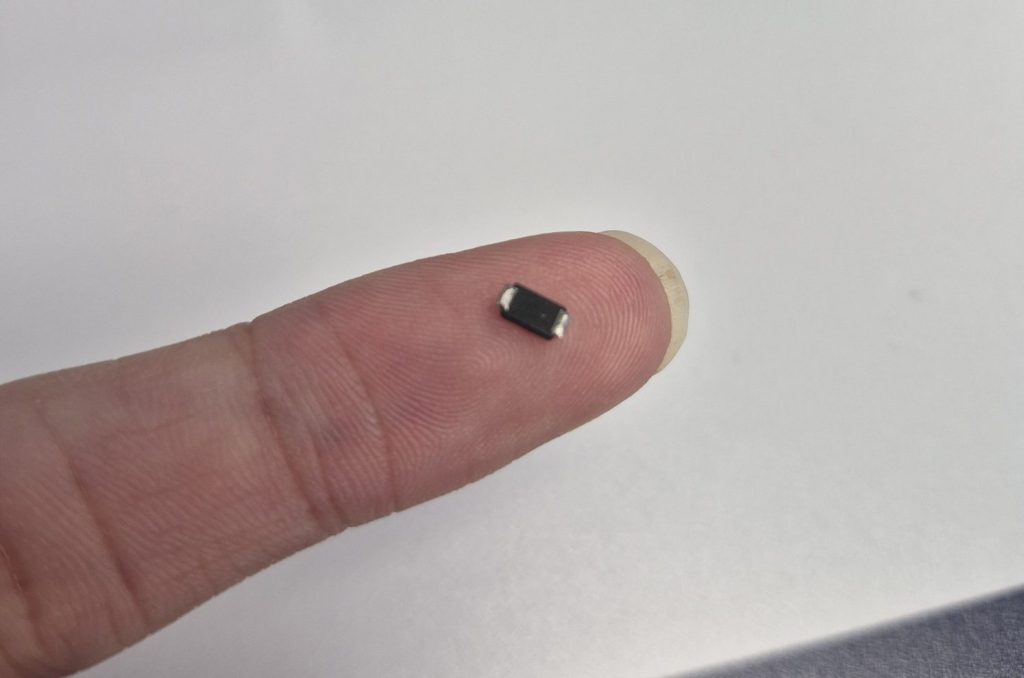
Capacitors are the components most likely to fail with age. Over years of use, they degrade due to heat, electrical stress, and simply time. Cheaper power supplies often use lower-grade capacitors that reach the end of their lifespan much sooner. When a capacitor fails, it can bulge, leak, or pop — sometimes loudly.
3. Overheating and Poor Airflow
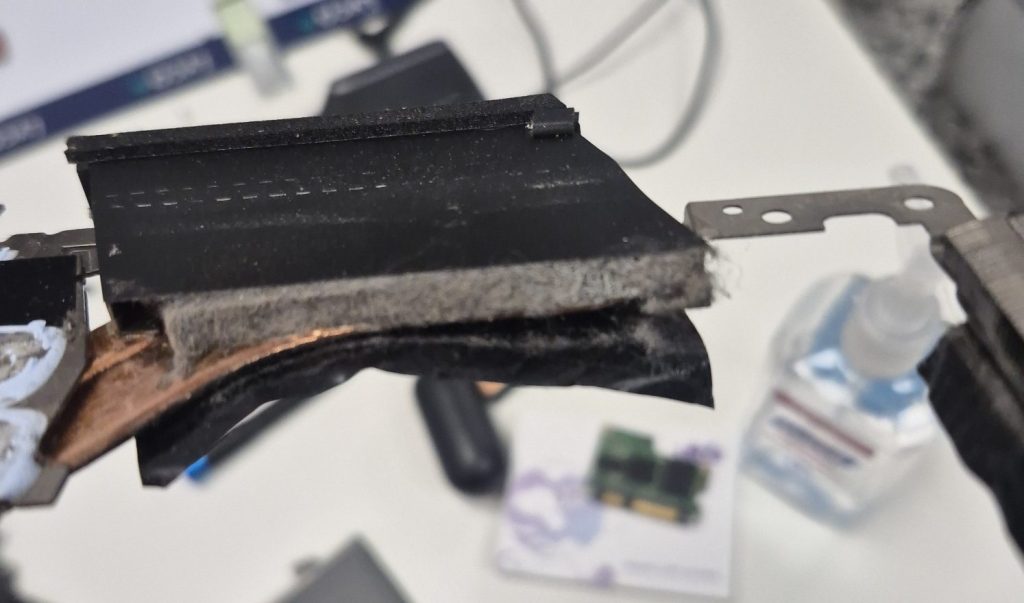
Heat is the enemy of electronics. Dust buildup, blocked vents, and failing cooling fans all cause internal temperatures to rise, which accelerates wear on power-delivery components. A machine that runs hot for years is more likely to experience a catastrophic failure than one that stays cool and clean.
4. Liquid Damage and Humidity
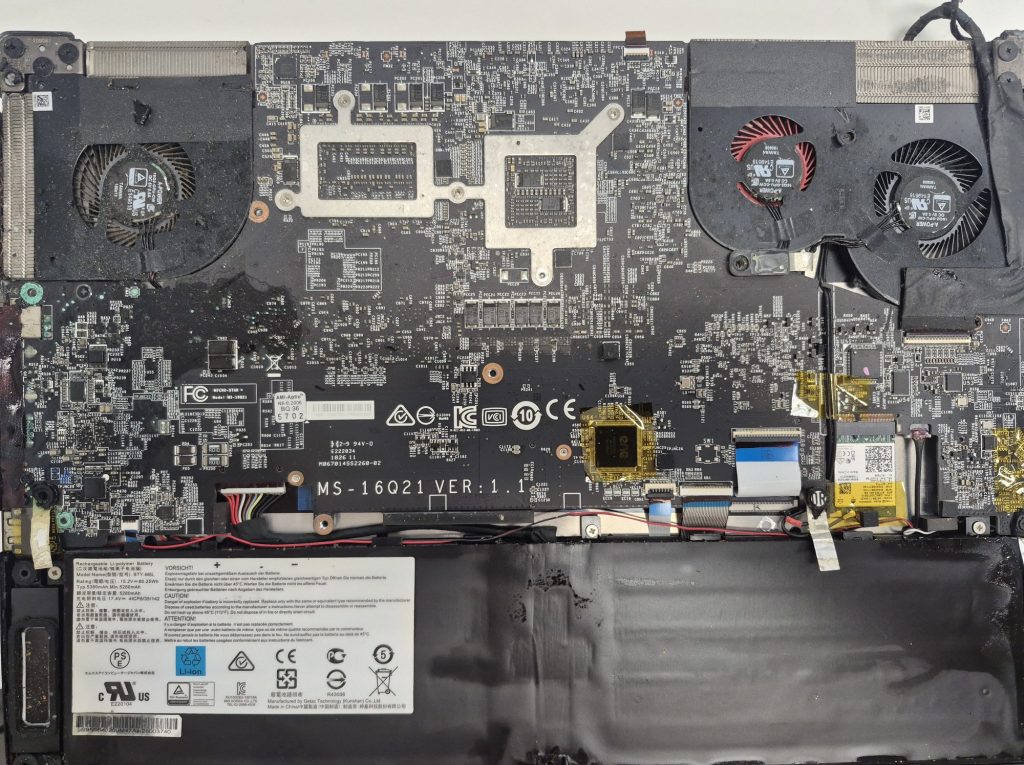
A spilled drink is an obvious risk, but even environmental moisture can cause problems. High humidity — common in basements, garages, or kitchens — can cause corrosion over time that eventually leads to a short circuit. Laptops are especially vulnerable here since they’re often used in more varied environments.
Desktop vs. Laptop: Why the Outcome Is Very Different
Whether you have a desktop or a laptop matters a lot when it comes to how serious this kind of failure is.
Desktop Computers: Modular and More Survivable
Desktop PCs have a separate, replaceable power supply unit (PSU). In many cases, when a PSU fails, it absorbs the damage and protects the rest of the system — that’s actually part of what it’s designed to do. If you were lucky and the failure was contained to the PSU, replacing it is straightforward and relatively affordable.
That said, a large surge can push past the PSU and damage other components. The most common secondary casualties are:
- The motherboard (most likely, since it connects directly to the PSU)
- RAM (less common, but possible)
- Storage drives like HDDs or SSDs (fairly rare, but it happens)
- CPU or GPU (uncommon, but possible in severe cases)
The good news with desktops is that individual components can be diagnosed and replaced. Even if the motherboard is toast, the rest of the machine can often be reused.
Laptops: Higher Stakes, Less Flexibility
Laptops don’t have a removable power supply. Instead, the power delivery circuitry — charging ICs, MOSFETs, voltage regulators — is built directly into the motherboard. When that circuitry fails catastrophically, it usually takes the whole motherboard with it.
What this means practically: a popping sound from a laptop is rarely a cheap fix. Motherboard repair at the component level (microsoldering) is possible but requires specialized skills and equipment. Full motherboard replacement is another option, though cost can be significant depending on the model.
The silver lining: the storage drive (SSD or HDD) is usually on a separate component and survives even when the rest of the laptop doesn’t. Your data is very likely still recoverable.
What You Should (and Shouldn’t) Do Right Now
Do not power the system back on. If there’s a burning smell, visible damage, or any sign of a serious failure, turning it back on can make things significantly worse — or create a safety hazard. Unplug it from the wall and leave it off until it’s been professionally inspected.
Beyond that, your next step depends on what happened:
- If it was an internal PSU failure with no surge, a desktop is very likely fixable.
- If a surge was involved, budget for potential motherboard replacement in addition to the PSU.
- If it’s a laptop, prepare for the possibility that motherboard repair or replacement may be needed.
- In all cases, getting the storage drive checked and backed up should be a priority.
How We Approach This Problem
When you bring in a computer with a power failure, here’s what our diagnostic and repair process typically looks like:
Full System Diagnostic
Before anything gets replaced, we will inspect the failed components, check for shorted circuits, and test power delivery across the system. This determines the scope of damage and which components still function — avoiding unnecessary replacements.
Data Backup First
The storage drive is almost always the first thing to address. Even if the computer itself can’t boot, the drive can usually be read externally. Getting your files copied off and safely stored is the priority before any repairs begin.
Power Supply Replacement (Desktops)
If the failure is limited to the PSU, it gets replaced with a properly rated, quality unit. We will typically recommend stepping up to a better PSU than what failed — especially if the original was a budget model — to reduce future risk.
Motherboard Repair or Replacement
If the motherboard was damaged, desktops get a replacement board. For laptops, we also offer board-level repair if the failure point can be identified and resoldered — or a full board replacement if not.
OS Reinstall If Needed
If the storage drive survived but the system is behaving strangely after repairs, a clean OS reinstall ensures there’s no corruption affecting stability.
Optional: Hardware Upgrades
Since the system is already partially disassembled, some customers take the opportunity to upgrade — swapping to a faster SSD, adding RAM, or installing a UPS for ongoing surge protection. It’s often the most cost-effective time to make those improvements.
Is Your System Salvageable? Realistic Expectations
Here’s a realistic breakdown based on what typically happens in these situations:
- Desktop, PSU failed internally (no major surge): Very likely salvageable. Replace the PSU, test other components, usually good to go.
- Desktop, surge involved: Mixed results. PSU plus motherboard replacement is common. Other components often survive.
- Laptop, power delivery failure: Often requires motherboard repair or replacement. Budget repair is unlikely. Data recovery is usually possible.
- Any system with persistent burning smell or visible burn marks: Stop. Don’t power it on again. Bring it in for assessment before doing anything else.
How to Prevent This From Happening Again
Once things are repaired, a few simple habits go a long way:
- Use a quality surge protector — not a cheap power strip. Look for ones with a joule rating above 1000.
- Consider a UPS (uninterruptible power supply), especially if you’re in an area with frequent outages or power fluctuations. This is overkill in our opinion but the option is available.
- Keep your computer clean and well-ventilated. Annual dust cleaning can meaningfully extend component lifespan.
- Avoid using laptops on soft surfaces (beds, couches) that block airflow.
- Don’t eat or drink near your laptop if possible.
Bottom Line
A power supply failure is scary, but it’s not always catastrophic. Desktops, in particular, are often very recoverable — especially when the damage stayed contained to the PSU. Laptops are trickier, but your data is usually safe even when the machine itself isn’t.
If this just happened to you: unplug it, leave it off, and bring it in. The sooner a technician can assess the damage, the better your chances of a full recovery — and the less likely a secondary issue has time to develop.
Have questions about what happened to your specific machine? Stop by our shop in Downtown, Los Angeles or give us a call. We’re happy to take a look and give you an assessment before any work begins.
 ITBrother