

Nothing is more frustrating than being in the middle of a video call, a show, or a gaming session and having your internet just cut out randomly. It’s one of the most common complaints I hear from customers, and the good news is that most of the time there’s a real cause — and a real fix.
In this guide, I’ll walk you through what’s actually going on, how to figure out where the problem is, and what you can do about it. By the end, you’ll know exactly what’s wrong and what to do about it.
Step 1: Check if the Problem Is on Your End or Your ISP’s
Before touching a single cable, do this quick check: open your ISP’s app or website on your phone using mobile data and look for an outage in your area. You can also check Downdetector.com, which shows real-time outage reports by provider.
Also glance at the lights on your modem. If the “Online” or “Internet” light is off or blinking, the problem is likely coming from your ISP’s side — and no amount of troubleshooting on your end will fix it until they resolve it.
If everything looks fine on the ISP side, move on to the next steps.
Step 2: Restart Your Router and Modem (Do It Right)
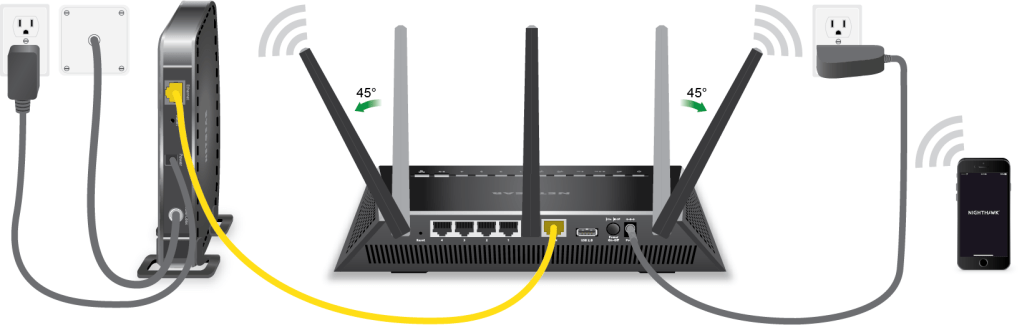
This single step fixes the majority of random disconnections. But there’s a right way to do it:
- Unplug your modem from the power outlet (and your router separately, if they’re different devices).
- Wait a full 60 seconds. This gives the modem time to fully clear its memory and drop its session with your ISP.
- Plug the modem back in first and wait until its lights stabilize (usually 2–3 minutes).
- Then plug the router back in and give it another minute to boot up.
Have an all-in-one gateway from your ISP? Just unplug it, wait 60 seconds, and plug it back in. These combo devices are actually one of the most common sources of persistent drops — they tend to overheat and run outdated firmware.
Step 3: Figure Out If It’s One Device or All of Them

This step helps you narrow things down fast.
- If only one device is dropping: the issue is probably with that device’s Wi-Fi adapter, network settings, or drivers — not your router.
- If multiple devices are dropping: the problem is with your router, modem, or the connection coming into your home.
Quick test: Plug the problematic device directly into your router with an Ethernet cable. If it stays connected, you’re dealing with a Wi-Fi signal issue, not an internet issue.
Step 4: Rule Out Overheating
A lot of people miss this one. When routers and modems overheat, they throttle performance or reboot themselves — which looks exactly like a random internet drop.
Touch the top and sides of your router and modem. If they’re too hot to comfortably hold your hand on, overheating is likely a factor. Common culprits:
- Sitting on carpet or inside a cabinet with no airflow
- Stacked on top of other electronics
- Placed near a heat source or in direct sunlight
The fix is simple: move it somewhere open with good ventilation. A shelf works well. This one change can eliminate a whole class of frustrating, hard-to-diagnose drops.
Step 5: Address Wi-Fi Interference and Signal Issues
Wi-Fi signals share airspace with a lot of other devices, and congestion or interference is a very common cause of dropouts. A few things that can cause interference:
- Microwaves, cordless phones, and baby monitors (especially on the 2.4 GHz band)
- Thick concrete walls, metal studs, and large mirrors
- Neighboring Wi-Fi networks on the same channel
What to try: Move your router to a central location in your home, off the floor, and away from appliances. If your router supports both 2.4 GHz and 5 GHz bands, try connecting your device to the 5 GHz band — it’s faster and less congested, though it has a shorter range. You can also log into your router’s admin panel and switch to a less-used Wi-Fi channel.
Step 6: Check for Too Many Devices and Bandwidth Overload

The average household now has more than 10 devices connected to Wi-Fi at once — phones, laptops, smart TVs, gaming consoles, smart home devices, and more. When several of them are streaming or downloading at the same time, older routers can struggle.
If you notice drops happening specifically during peak usage times, try disconnecting devices you’re not actively using and see if things stabilize. You can also log into your router and enable Quality of Service (QoS) settings, which let you prioritize traffic for things like video calls or streaming.
Don’t Forget: Firmware and Driver Updates
Outdated router firmware is a surprisingly common cause of random disconnections. Router manufacturers release updates to fix bugs, patch security holes, and improve stability. Many newer routers handle updates automatically, but older models require you to log into the router’s admin panel and check manually.
If drops are happening on a specific Windows computer, it’s also worth updating your network adapter drivers: open Device Manager, expand Network Adapters, right-click your Wi-Fi adapter, and select Update Driver.
When to Call Your ISP
If you’ve worked through all of the above and multiple devices are still dropping, it’s time to contact your internet service provider. When you call:
- Tell them you’ve already restarted your modem and router
- Mention that multiple devices are affected
- Ask if there’s an outage or known issue in your area
A good ISP can run a remote line test, reset your connection on their end, or send a technician if there’s a physical issue with the line. If they determine the equipment itself is the problem, it may be worth replacing it — especially if your router or modem is more than 4–5 years old. Older gear simply isn’t built to handle today’s demands.
Long-Term Tips for a More Stable Connection
- Keep firmware updated. Enable auto-updates on your router if available.
- Consider a mesh network. For larger homes or multi-floor setups, a mesh Wi-Fi system eliminates dead zones far better than a single router.
- Set up a separate network for IoT devices. Smart home gadgets on a guest network keep them from bogging down your main connection.
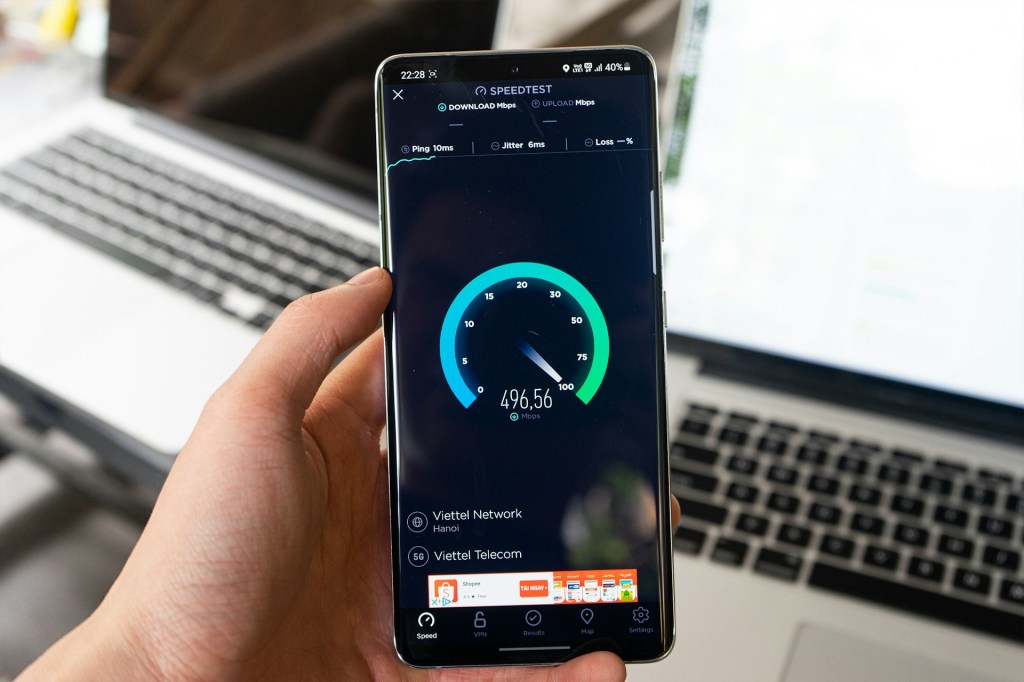
- Run a speed test. Tools like Speedtest.net or Fast.com can tell you if you’re actually getting the speeds you’re paying for. If you’re consistently getting much less, that’s a conversation to have with your ISP.
- Upgrade aging equipment. If your router is over 5 years old, it likely doesn’t support modern Wi-Fi standards. Look for Wi-Fi 6 or Wi-Fi 6E routers for much better performance and reliability.
Quick Summary: What to Do When Your Internet Keeps Dropping
- Check your ISP’s outage status first (Downdetector.com or their app)
- Restart your modem and router (unplug for 60 seconds, modem first)
- Determine if it’s one device or your whole network
- Check for overheating and improve ventilation
- Relocate your router and reduce interference
- Update router firmware and device drivers
- Call your ISP if the problem persists across all devices
Need a Hand?
If you’ve worked through every step in this guide and your connection is still dropping, it might not be your network at all — the culprit could be the device itself. That’s something we can help with. Stop by our shop in Downtown, Los Angeles and we’ll take a look.
For issues that extend beyond a single device — like whole-home connectivity problems or persistent drops across everything — your best next call is your ISP. They have the tools to test your line, check for outages, and send a technician if needed.
 ITBrother