

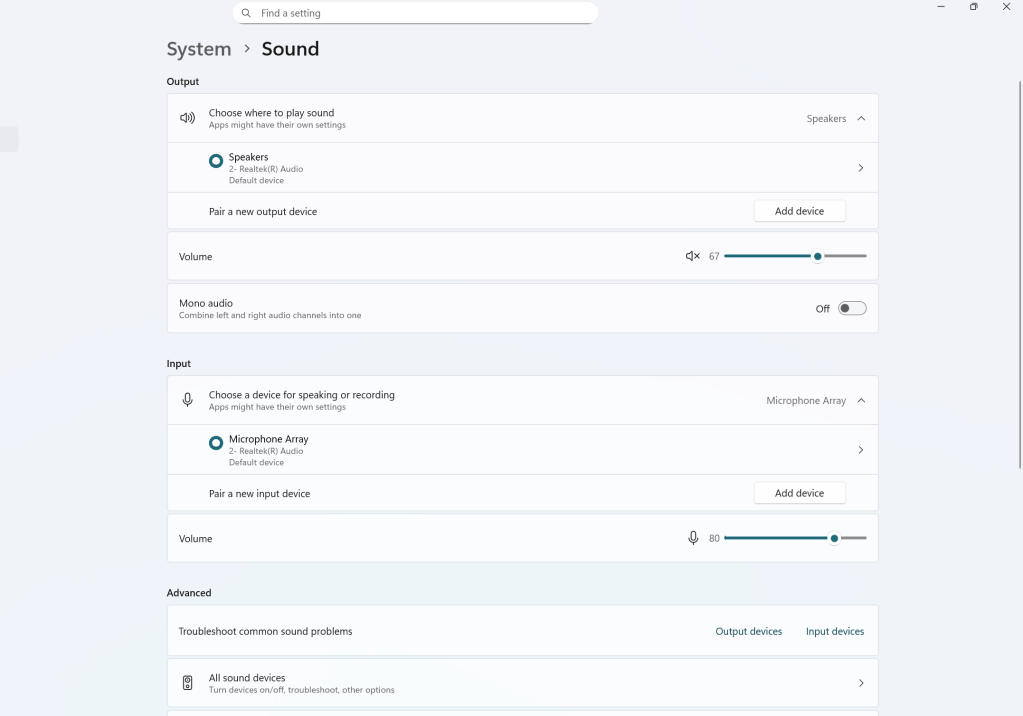
Surprisingly, speaker and audio problems are some of the more uncommon computer issues people run into. Audio is one of the most basic systems built into any computer, so most users go years without experiencing major problems. In my repair experience, the only times I consistently see audio or speaker failures are when the speaker itself is physically damaged—either it stops outputting sound entirely, or it stops being detected by the operating system.
However, physical damage isn’t always the cause. A failing integrated audio chip on the motherboard can create the exact same symptoms, which is why troubleshooting audio issues can sometimes get tricky. When the audio chip goes bad, the only proper repair is often a full motherboard replacement, since the chip is part of the board and not something that can be easily swapped out. But even then, motherboard-level issues aren’t always hopeless. There are still affordable workarounds and practical solutions—each with their own caveats—that can restore sound to your system.
Before getting into fixes, it’s helpful to understand the common causes. Audio issues generally fall under one of these categories:
- Software-related problems (drivers, Windows bugs, updates)
- Hardware-related issues (failed speakers, damaged audio chip)
- Configuration or OS detection problems
Once you understand where the issue might be coming from, troubleshooting becomes much simpler.
The Three Main Fixes for Audio Problems
Although there are many different symptoms—from crackling audio to no sound at all—the solutions almost always fall into the same three categories:
- Reinstall the audio driver
- Reinstall Windows
- Replace the speaker (laptops only)
With most audio issues, these steps will resolve the problem without needing deeper board-level repair.
1. Reinstalling the Audio Driver
In the majority of cases, reinstalling the audio driver fixes the problem entirely. If your speaker isn’t being detected by the operating system, if you’re getting audio distortion, or if the sound randomly cuts out, a corrupted or outdated driver is often the culprit.
Here’s why this step is so effective:
- Drivers act as the communication bridge between hardware and the OS.
- When they malfunction, the system can’t properly identify or communicate with the speaker.
- A fresh installation forces Windows to reset that communication.
But there’s one challenge: sometimes the correct audio driver isn’t readily available. This usually happens with older systems, discontinued models, or manufacturer websites that have removed older driver downloads. In situations like that, simply reinstalling the driver isn’t an option—and that’s when the next method becomes necessary.
2. Reinstalling Windows (When Drivers Aren’t Available)
If the audio driver can’t be reinstalled or the reinstall didn’t fix the problem, the next best approach is a full Windows reinstall.
A fresh Windows installation helps in two ways:
- Windows Update automatically pulls the correct audio drivers, even for older systems.
- It removes any corrupted system files, background processes, or conflicting programs that might be interfering with the sound.
I’ve personally seen many cases where Windows itself caused the audio problem. Sometimes the system won’t detect speakers after an update. Other times the audio service fails to run correctly, causing random dropouts or no sound at all. In these situations, reinstalling Windows is often the most reliable fix because it eliminates every unknown variable.
If even a clean install doesn’t resolve the issue, that’s usually a sign you’re dealing with a hardware problem rather than a software one.
3. Replacing the Speakers (Laptops Only)
This step is specific to laptops, since desktop speakers are usually external.
Laptop speakers fail more often than most people realize. They may not fail completely at first—usually they start giving early warning signs, such as:
- Crackling or popping during audio playback
- Distortion at higher volumes
- Audio that cuts in and out
- Uneven sound between the left and right channels
These symptoms are strong indicators that the speaker hardware is deteriorating. Unlike software-related issues, physical speaker problems don’t improve with driver reinstalls or OS reinstalls.
Replacing laptop speakers is often inexpensive and straightforward for most models. It’s not always as easy as unscrewing a panel, but it’s still much cheaper and more realistic than repairing a motherboard-level audio problem.
When It’s the Worst Case Scenario: A Failed Audio Chip
Now let’s talk about the scenario nobody wants to hear: the onboard audio chip going bad.
When the audio controller on the motherboard itself fails, you’ll usually see symptoms like:
- No sound even after Windows reinstall
- Audio device not detected under Device Manager
- “No audio output device installed” errors
- Speakers not recognized even though they are functional
Unfortunately, if the audio chip is damaged, there is no guaranteed fix outside of replacing the entire motherboard.
Some repair shops do offer chip-level replacement. However, that process:
- Requires specialized soldering and micro-soldering equipment
- Takes a lot of time and precision
- Can be more expensive than the device is worth
For most people, that kind of repair simply isn’t cost-effective.
The Most Realistic Solution: External Sound Cards
When the audio chip fails and motherboard replacement isn’t worth it, the best alternative is to use an external sound card. It essentially becomes your new audio system, bypassing the failed onboard chip entirely.
There are two main options:
For Desktops:
A PCI or PCIe sound card that plugs directly into the motherboard.
For Laptops:
A USB sound card—small, affordable, and easy to set up.
This solution comes with a few drawbacks, especially for laptops:
- You’ll need to carry the USB sound card if you want audio on-the-go.
- One USB port will always be occupied.
- It’s not the cleanest or most elegant setup.
But for the price and simplicity, it’s the most practical workaround. Most USB sound cards cost only a few dollars and work instantly without extra drivers. For desktops, a PCI sound card is even cleaner since it stays inside the tower and doesn’t use any external ports.
Final Thoughts
Audio and speaker issues may not happen often, but when they do, they can be frustrating because the cause isn’t always obvious. Thankfully, most problems can be solved with simple solutions like reinstalling drivers or Windows. When hardware is the issue—especially in laptops—the signs are usually clear, and replacing the speaker can bring the system back to life.
For those rare cases where the audio chip has failed, external sound cards offer a cheap and effective workaround that avoids costly motherboard replacements.
If you’re dealing with no sound, speaker problems, or audio detection issues, starting with these troubleshooting steps can save you a lot of guesswork—and possibly money—before taking the system in for repair.
 ITBrother