

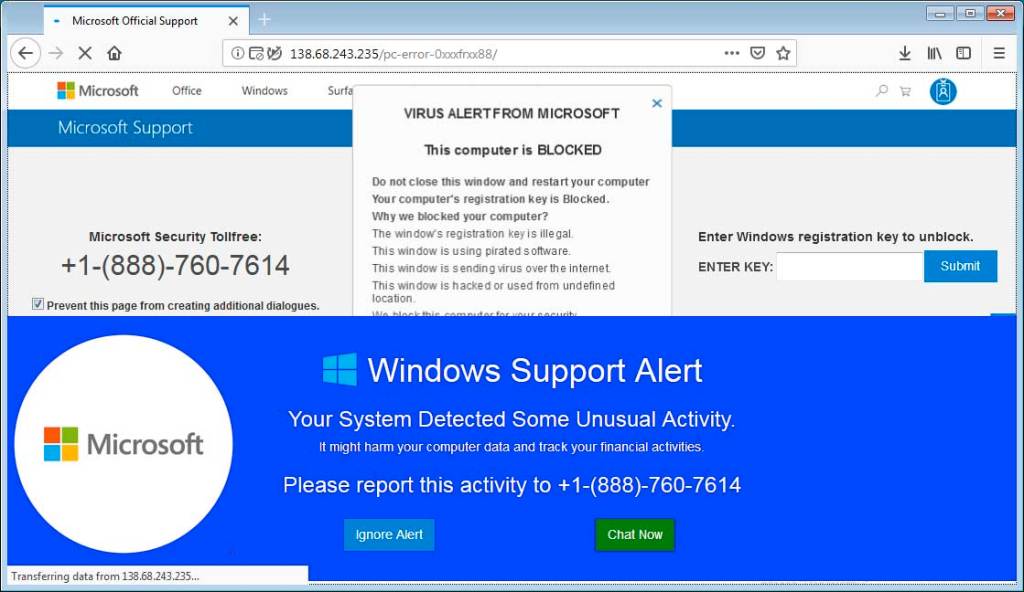
We hear this often at our shop. A customer calls or comes in saying “I let someone into my computer… they said they were from Microsoft.” By that point, the damage is usually already done.
Tech support scams are one of the most common—and most devastating—types of cybercrime targeting everyday people. According to the FBI’s 2024 Internet Crime Complaint Center (IC3) report, adults 60 and older alone lost $98 million to tech scams. And that number only counts the people who actually reported it.
Whether you’ve already been targeted or just want to stay protected, this guide walks you through exactly how these scams work, how to recognize them instantly, and what to do if something feels wrong.
1. Fake Browser Pop-Ups: The Most Common Entry Point
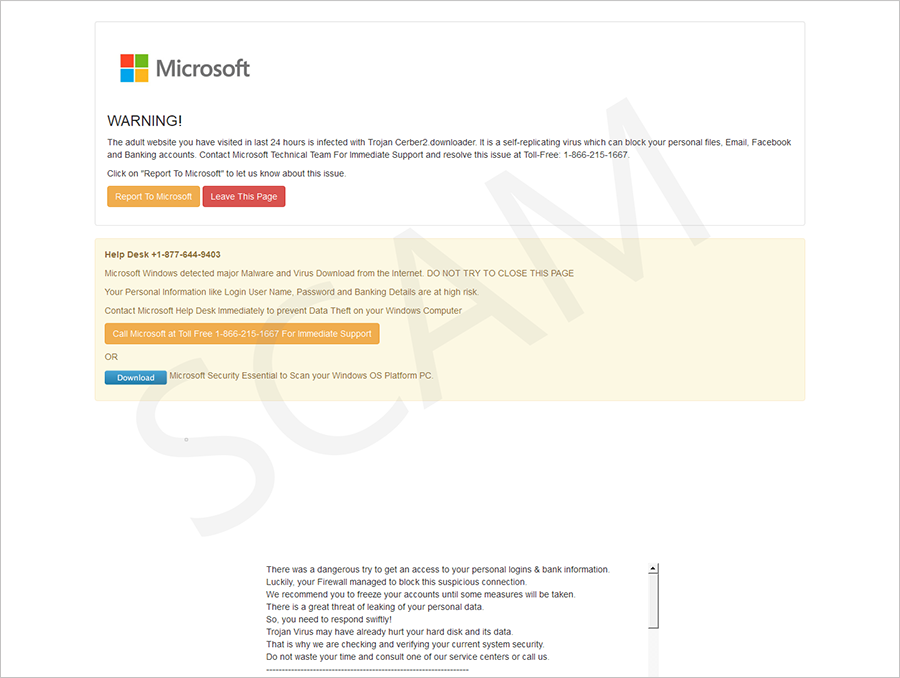
Most tech support scams don’t start with a phone call—they start with a terrifying pop-up that suddenly fills your browser screen. These pages are designed to look urgent, official, and alarming.
Common fake pop-up messages include things like:
- “CRITICAL ALERT: Your computer is infected with 5 viruses!”
- “Do not close this window. Call Microsoft Support immediately at 1-800-XXX-XXXX.”
- “Your computer has been locked due to suspicious activity.”
These are not real antivirus alerts. They’re just web pages using JavaScript to make your browser look like it’s locked. The “lock” is fake. Your computer is fine.
How to tell it’s fake:
- The warning came from your browser window, not from your actual antivirus program
- It includes a phone number to call (real antivirus software will never do this)
- It uses logos from McAfee, Norton, or Windows Defender—but you don’t actually have those installed
- The page plays a loud alarm sound or speaks a warning aloud
What to do:
- Do not call the number. Do not click anything on the page.
- Close your browser. If it won’t close normally, press Ctrl + Shift + Esc (Windows) to open Task Manager, then end the browser process.
- Run a real scan with Windows Security (built into every Windows 10/11 PC) or a trusted tool like Malwarebytes.
- Clear your browser cache and cookies after the scare, just to be safe.
2. Tech Companies Does Not Have a Dedicated Support Line for Your Tech Problems
Here’s something most people don’t realize: Microsoft, Apple, Google, and other major tech companies do not offer a general support line where you can call in and speak to someone about a problem on your personal device. It’s just not how they operate at scale.
Microsoft’s support is largely self-service—their website, help documentation, community forums, and automated tools. If you do reach a real person through official Microsoft channels, it’s usually after navigating a lengthy process, and it’s always you initiating the contact, not them.
So if a pop-up gives you a number to call for “Microsoft Support“—or if you find a number through a search engine and aren’t sure it’s legitimate—be very careful. Scammers buy ads and create fake support pages specifically to intercept people looking for help.
The safest rule: always go directly to microsoft.com, apple.com, or the official site of whatever product you need help with. Don’t call a number from a pop-up, an unsolicited email, or an unverified search result.
3. How the Phone Call Scam Works (Step by Step)
Once a scammer has you on the phone—whether you called them from a fake pop-up or they somehow reached you—they follow a well-rehearsed script designed to create panic and urgency. Here’s the typical playbook:
- Step 1: They tell you your computer has a serious virus, has been hacked, or is sending out spam.
- Step 2: They ask you to open a program like Event Viewer (Windows) to “show” you scary-looking error codes—which are actually normal and harmless on every computer.
- Step 3: They ask you to download a remote access tool like AnyDesk, TeamViewer, or QuickAssist so they can “fix the problem.”
- Step 4: Once inside your computer, they may install malware, browse your files, steal saved passwords or banking info, and then demand payment—usually via gift cards, wire transfer, or cryptocurrency.
The remote access tools themselves (AnyDesk, TeamViewer, etc.) are legitimate software used by real IT professionals every day. The problem is when a stranger convinces you to install them and hand over control. Once that access is granted, the damage can happen in minutes.
4. Scams Are Getting Smarter: The AI Factor
This is something the original version of this post didn’t cover, and it’s important: AI has made these scams significantly more convincing.
Scammers now use AI-generated voices that sound like real Microsoft or Apple employees. They can create deepfake videos. They send phishing emails with nearly perfect grammar and formatting—gone are the obvious typos and awkward phrasing that used to give them away.
Some scammers have even started using AI to clone the voices of family members, calling elderly relatives pretending to be a grandchild in trouble.
The rule hasn’t changed—but it’s worth repeating louder: no tech company will contact you out of the blue, by any method, asking for access to your device. If it feels urgent and unexpected, slow down. Call someone you trust before doing anything.
5. Who Scammers Target Most

Anyone can be targeted, but the FBI’s data consistently shows that adults 60 and older are the most frequent victims of tech support scams. Scammers know this group may be less familiar with how legitimate tech support works, and they’re willing to spend time on the phone to build trust.
If you have a parent, grandparent, or older neighbor who uses a computer or smartphone, please share this post with them. A five-minute conversation could save them thousands of dollars—and a lot of heartbreak.
Quick Reference: Red Flags at a Glance
- An unexpected phone call claiming your computer has a problem
- A pop-up with a phone number to call for tech support
- Anyone asking you to install AnyDesk, TeamViewer, or similar software
- Requests for payment via gift cards, wire transfer, Zelle, or cryptocurrency
- Extreme urgency—”you must act NOW or lose your data”
- Caller ID that shows “Microsoft,” “Apple,” or another tech brand (these can be spoofed)
What to Do If You’ve Already Given Access
If you realize mid-call or after the fact that something wasn’t right, act quickly:
- 1. Disconnect from the internet immediately. Unplug the ethernet cable or turn off Wi-Fi.
- 2. Change your passwords from a different, clean device—especially email, banking, and anything tied to financial accounts.
- 3. Contact your bank and alert them to potential fraud. Ask about freezing transactions if you shared any financial info.
- 4. Run a full malware scan using a trusted tool. Malwarebytes Free is a good starting point.
- 5. Report it to the FTC at reportfraud.ftc.gov and to the FBI’s IC3 at ic3.gov.
- 6. Bring your computer to a local shop. A professional can check for installed malware, remote access tools left behind, and any other changes the scammer made.
Don’t feel embarrassed if this happened to you. These scammers are professional manipulators. They do this all day, every day. The important thing is acting fast.
We’re Here If You Need Us
If you think your computer may have been compromised—or you just want peace of mind—bring it in. We’ll take a look, run a thorough check, and give you a straight answer. No upselling, no scare tactics. Just honest help from people who actually work on computers for a living.
And if you have a question that doesn’t require a visit, feel free to give us a call or drop by our shop in Downtown, Los Angeles. That’s what we’re here for.
Found this helpful? Share it with someone who might need it. The best way to stop these scams is making sure everyone knows how they work.
 ITBrother