

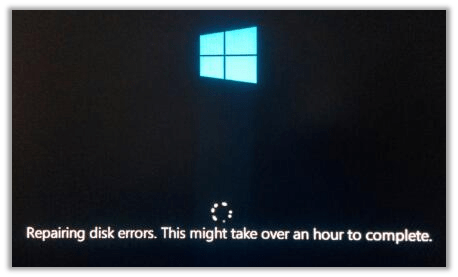
If your computer shows a “Repairing disk” or “Checking disk” message during startup, you may not think much of it. Most people cancel the process, the PC boots up fine, and they move on. But here’s the honest truth: that message is usually an early warning sign that your hard drive is starting to fail.
In this post, we’ll break down exactly what’s happening, why it matters, and what you should do to prevent a potentially catastrophic situation.
Why This Mostly Happens on Older Computers
If you have a newer laptop or desktop, you’ve probably never seen this message — and that’s because most modern computers use solid-state drives (SSDs), which store data on memory chips with no moving parts. SSDs handle errors very differently and are far more resilient.
This issue is much more common on older computers that still use a traditional mechanical hard disk drive (HDD). These drives work by spinning magnetic platters while a tiny read/write head moves back and forth to access your data — think of it like a record player. After years of use, those physical components wear down, and that wear eventually causes errors that Windows picks up on.
What Actually Triggers the “Repairing Disk” Message
Your hard drive stores data in small units called sectors. When Windows has trouble reading one or more of these sectors, it flags the problem and launches a disk check at the next startup.
These sector problems fall into two categories:
- Physical bad sectors — part of the disk platter is physically worn, scratched, or degraded and can no longer reliably hold data.
- Logical bad sectors — the hardware may still be functional, but the data stored in that sector is corrupted or unreadable due to an improper shutdown, power surge, or file system error.
When either type is detected, Windows automatically tries to address it before fully loading the operating system.
What Windows “Repairing Disk” Actually Does (It’s Not What You Think)
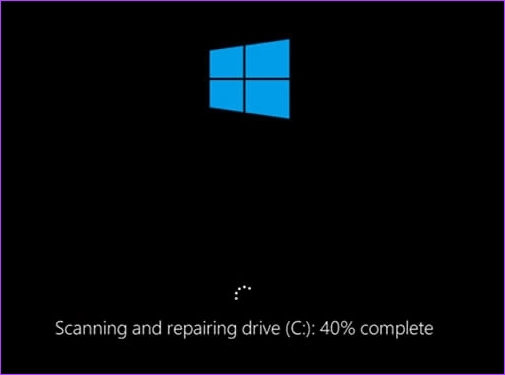
This is where a lot of people get the wrong impression. Despite the word “repair,” Windows is not fixing your hard drive. What it’s actually doing is:
- Identifying the problem sectors
- Marking them as off-limits so the OS avoids writing to them again
- Reorganizing the file system around the damaged areas
Think of it like a road crew putting up orange cones around a pothole — the pothole is still there, they’re just routing traffic around it. The drive itself is not getting better. In fact, once a mechanical hard drive starts developing bad sectors, more typically follow.
Why the Problem Gets Worse Over Time
A failing hard drive tends to follow a pattern: a few bad sectors appear, Windows works around them, things seem fine — and then more sectors fail. Each time this happens, your drive has less usable space, performs more slowly, and becomes increasingly unpredictable.
If bad sectors eventually form in areas where critical system files or personal data are stored, the consequences can be serious:
- Files may become corrupted or permanently unreadable
- Windows may stop booting altogether
- Important data — photos, documents, work files — may be gone for good
This is why we always tell our customers: don’t wait on this one.
What You Should Do Right Now
Step 1: Back Up Your Data Immediately!
This is the most important step, and it needs to happen before anything else. Even if your computer seems to be running fine right now, treat the drive like it could fail at any moment — because it might.
Copy your important files to:
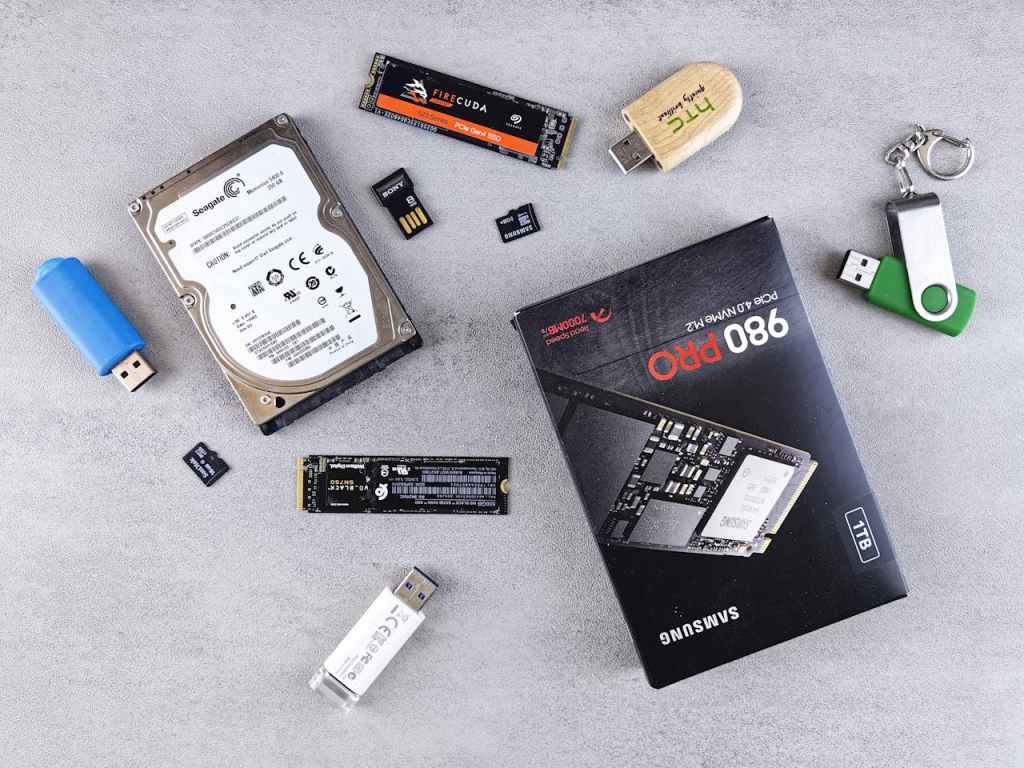
- An external USB hard drive or flash drive
- Cloud storage such as Google Drive, OneDrive, or Dropbox
- Both, if the files are especially important
Step 2: Have the Drive Tested
A technician can run a S.M.A.R.T. diagnostic (Self-Monitoring, Analysis, and Reporting Technology) on your hard drive. This tool reads health data that the drive tracks internally and gives a clearer picture of how far along the failure actually is.
Some drives are just starting to show early warning signs and may have more life in them. Others are already in critical condition. Knowing where yours stands helps you make a smarter decision about timing and urgency.
Step 3: Replace the Drive — Ideally with an SSD
Replacing the failing hard drive is the right long-term fix. And if your computer is running an older mechanical drive, upgrading to an SSD at the same time is one of the best investments you can make:
- SSDs are significantly faster — your computer will boot and open programs much more quickly
- They have no moving parts, so they’re far more resistant to physical damage
- They’re much less prone to the kind of progressive failure described in this post
A reputable repair shop can transfer your existing data to the new drive so you don’t lose anything in the process.
What If Files Are Already Missing or Corrupted?
If you’re already noticing problems — files that won’t open, folders that have disappeared, or a computer that refuses to boot — the situation is more serious but not necessarily hopeless.
Most local repair shops can handle basic data recovery for drives with logical errors or minor sector damage. However, if the drive has significant physical damage — a seized motor, a crashed read/write head, or extensive platter wear — that requires a specialized data recovery service. These labs work in cleanroom environments with professional-grade equipment and can often recover data even from severely damaged drives, though the cost is higher.
If the data is critical, it’s worth getting an expert opinion before attempting anything on your own — some DIY recovery attempts can make things worse.
The Bottom Line
A “Repairing disk” or “Checking disk” message is your computer’s way of telling you something is wrong with its storage drive. Windows isn’t actually fixing the problem — it’s managing it temporarily.
If you see this message:
- Back up your data first — don’t wait
- Get the drive tested by a technician
- Plan for a drive replacement sooner rather than later
Catching this early is the difference between a straightforward drive swap and a much more stressful (and expensive) data recovery situation. If you’re unsure what to do next, feel free to stop by our shop in Downtown, Los Angeles. We’ll take a look and figure out what your next steps should be.
