


When a computer starts to feel sluggish, the first troubleshooting step most people try is a reset. It makes sense on paper: wiping the drive and reinstalling the operating system should clear out whatever software, junk files, or misconfigurations were dragging things down. So when the computer is still crawling after a full reset, it’s confusing — even a little alarming.
If that’s where you’re at right now, here’s the honest answer: a reset can absolutely fix some kinds of slowness, but it’s not a cure-all. A lot of the time, the real problem isn’t software at all. Below is how I actually walk through this when a customer brings in a computer that’s “still slow even after I reset it,” in the order I check things.
Is Some Slowness Normal Right After a Reset?
Before assuming something’s broken, it helps to know that some slowdown right after a reset is expected. For the first day or so, Windows is downloading updates in the background, reinstalling drivers, rebuilding search indexes, and reconfiguring default settings. That can make even a fast computer feel temporarily sluggish.
The rule of thumb I give customers: if it’s been a day or two and things seem to be settling down, give it a little more time. If it’s been several days and the computer feels just as slow — or slower — than before the reset, that’s a sign something else is going on, and it’s worth digging deeper instead of waiting it out.
Rule Out Bloatware and Startup Program Creep
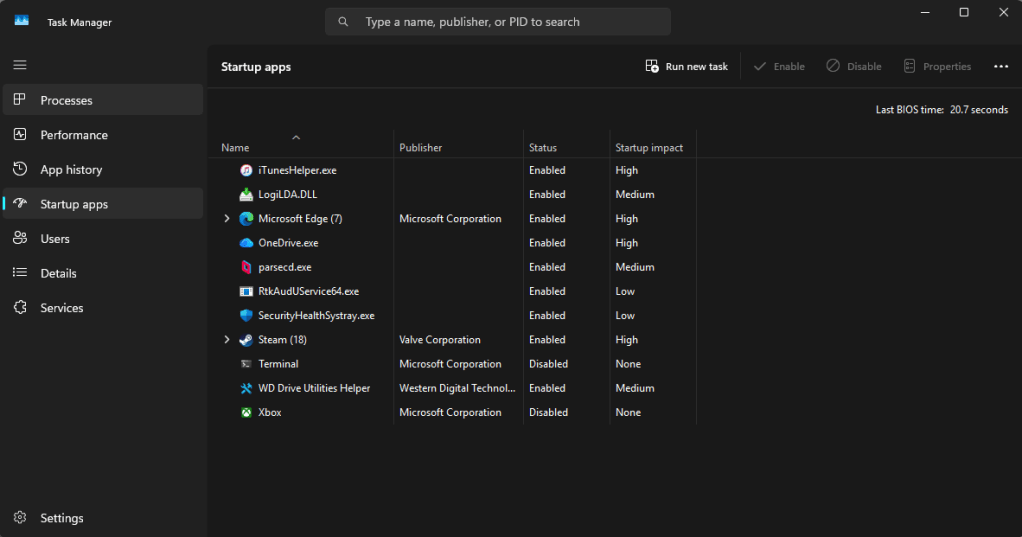
One thing a reset doesn’t always fix: every program racing to load the moment the computer turns on. Manufacturer software, trial antivirus programs, and default startup apps often come back after a reset, even if you’d cleaned them out before. Each one only uses a small amount of memory and processing power at boot, but they add up fast.
This is a two-minute check: open Task Manager, click the Startup Apps tab, and disable anything you don’t recognize or don’t use. It won’t fix every slow computer, but it’s worth ruling out before assuming the problem is hardware.
Check Whether the System Is Using a Hard Drive or an SSD
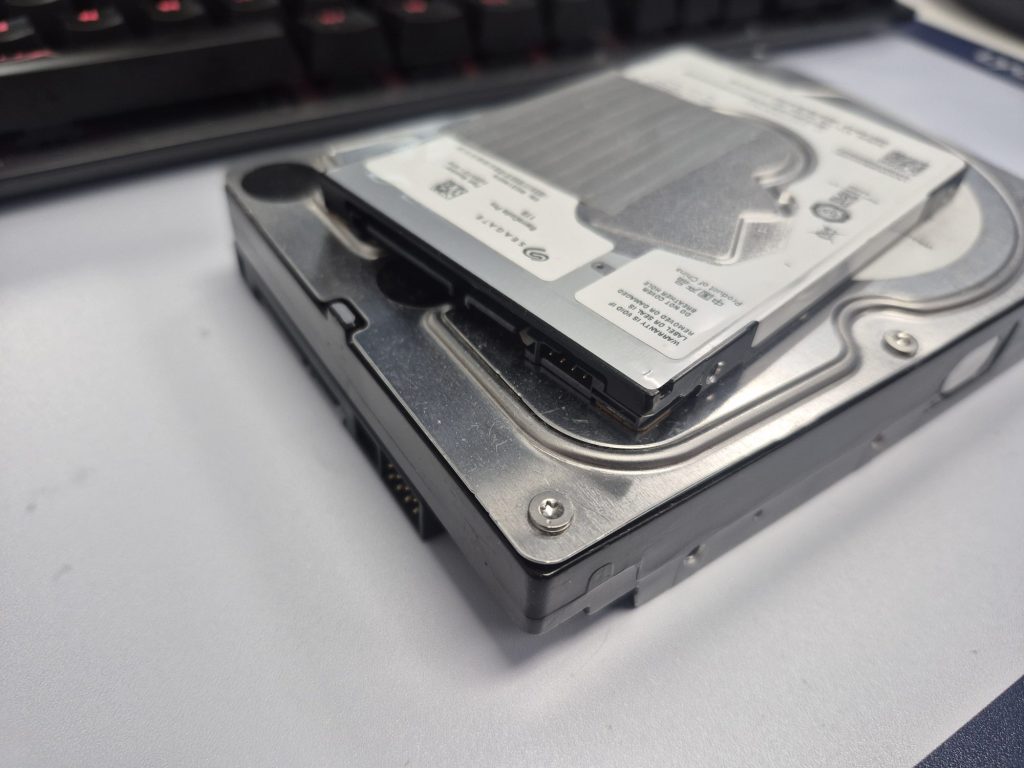
The first thing I check when a customer says their computer is still slow after a reset is the type of storage drive installed.
If the system is still running on a mechanical hard disk drive (HDD) instead of a solid-state drive (SSD), that alone can explain the poor performance.
Traditional hard drives rely on spinning platters and moving read/write heads. Over time, these mechanical parts wear down and slow the drive’s read and write speeds. Even brand new, HDDs are noticeably slower than SSDs, especially for boot times, program loading, and overall responsiveness.
Upgrading from an HDD to an SSD is one of the most effective performance upgrades available. Boot times, program launches, and file browsing can all feel dramatically faster — often several times quicker than on a mechanical drive. Results vary by system, but the difference is usually obvious right away.
Why HDDs Still Have a Place
Mechanical drives haven’t disappeared; their job has just changed. Today, HDDs are mostly used for mass storage and backups, where capacity matters more than speed. They cost less per gigabyte and, in some cases, are easier to recover data from after a failure. But they’re no longer a good choice as the main drive for a modern operating system.
If your computer is still booting from an HDD, upgrading to an SSD will almost always resolve “still slow after a reset” complaints.
Already Running an SSD? Make Sure It Got a True Clean Install
If the system already has an SSD and performance is still poor, the next thing to look at is how the operating system was actually installed.
Windows’ built-in “Reset this PC” option does offer a clean install path, but it isn’t as reliable as most people expect. It can take a long time, run into errors, and in some cases leave behind leftover configurations or issues from the previous installation — especially if personal files were kept instead of removed. A more dependable approach is a manual clean installation from a bootable USB drive.
Why a USB-Based Install Works Better
Installing from USB lets the installer fully format the drive before anything goes on it, skip relying on recovery files already stored on the computer, and put down a fresh copy of the operating system with no legacy components attached. The result is a cleaner system overall. Afterward, trimming unnecessary startup programs helps keep things running efficiently.
Many people reinstall Windows without backing up and fully wiping their existing data first. It feels faster in the moment, but it can leave behind old system files, drivers, or settings that keep affecting performance. If you’re troubleshooting persistent slowness, a true clean install is always the more reliable route.
When the SSD Itself Is the Problem
If the computer is running an SSD and has already gone through a proper clean install — but it’s still slow — the drive itself may be failing.
SSDs don’t last forever. Over time they can degrade from worn memory cells after repeated writes, controller failures, firmware issues, and hidden errors that don’t cause an outright crash.
Unlike a dying HDD, a failing SSD doesn’t always announce itself. The system can still boot and seem to run normally while performance quietly drops. Slow boot times, long load screens, and frequent lag are common early signs. At this stage, replacing the SSD is usually the most effective fix.
Quick Answers
Why is my computer still slow even after I wiped everything and did a factory reset?
A reset only addresses software-level problems. If the slowdown is coming from an old mechanical hard drive, an incomplete OS installation, or a drive that’s starting to fail, a reset won’t touch any of those — the issue is sitting below the operating system, in the hardware itself.
Does a factory reset fix a slow computer for good?
It can, if the original cause was software-related — clutter, corrupted files, malware, or a messy configuration. But it’s not a permanent fix for hardware limitations. An aging hard drive or a failing SSD will keep causing slowdowns no matter how many times you reset the system.
How can I tell if my SSD is failing?
Common signs include boot and load times that keep getting worse over weeks, programs that randomly freeze or stutter, files that fail to save or open correctly, and the drive occasionally disappearing from the system. None of these guarantee failure on their own, but together they’re worth having checked.
Is it worth upgrading to an SSD instead of buying a new computer?
Usually, yes — as long as the rest of the computer’s hardware (processor, RAM) still meets your needs. An SSD upgrade is one of the most noticeable performance changes you can make for a fraction of the cost of a new machine.
Final Thoughts
A computer that’s still slow after a reset is frustrating, but it’s rarely a mystery once you know where to look. In most cases, it comes down to one of these:
- the system is still running a mechanical hard drive
- background tasks and startup bloat just need a little time to settle
- the operating system wasn’t installed cleanly
- the SSD itself is starting to fail
A reset can fix a lot of problems, but it can’t undo hardware limitations or aging components. Figuring out the real bottleneck is the key to getting your speed back — and the fix is usually simpler, and cheaper, than people expect.
If your computer is still dragging after a reset, bring it by our shop in Downtown, Los Angeles and we’ll run a full diagnostic to find out exactly what’s slowing it down.
 ITBrother