

If your laptop feels fast and responsive when it’s plugged in, but sluggish the moment you pull the charger out, you’re not imagining things — and it’s an intended design. We get asked this question from customers quite often, and the good news is: in most cases, it’s completely normal.
That said, “normal” has its limits. There’s a big difference between a laptop running at 80% performance on battery versus one that’s barely usable the moment it’s unplugged. Understanding where that line is can save you a wasted repair trip — or help you catch a real issue before it gets worse.
Why Laptops Intentionally Run Slower on Battery
This isn’t a defect. It’s a deliberate design choice built into nearly every laptop on the market.
When your laptop is plugged in, it draws power directly from the wall. That gives the CPU and GPU all the headroom they need to run at full speed. The moment you unplug, the laptop switches to battery power, and the battery simply can’t supply energy at the same rate as a wall outlet.
To prevent the battery from draining in under an hour, the system automatically dials back performance. This typically looks like:
- Reduced CPU clock speeds (the processor runs at a lower frequency)
- Lower GPU power limits (graphics performance is capped)
- More aggressive power-saving policies across background processes
- Reduced screen brightness and peripheral activity
For most people doing everyday tasks, this reduction is barely noticeable. Browsing the web, writing documents, watching videos — all of this runs just fine on battery. The slowdown becomes obvious when you’re doing something demanding, like gaming, video editing, or running large software builds.
Gaming laptops feel this the most. These machines are designed around plugged-in performance. When unplugged, they often drop to a fraction of their normal GPU and CPU output. If you’ve ever tried to game on a plugged-out gaming laptop and noticed major frame rate drops, that’s exactly why.
When the Slowdown Is More Than Normal
Here’s where it gets important: a moderate performance reduction on battery is expected. A laptop that becomes barely usable — slow to open apps, laggy while just sitting at the desktop, struggling with tasks that should be easy — is a different problem.
In our experience, when the lag is excessive, it’s almost always a software issue, not a hardware failure. Here are the two most common culprits.
1. Manufacturer Power Management Software Gone Wrong
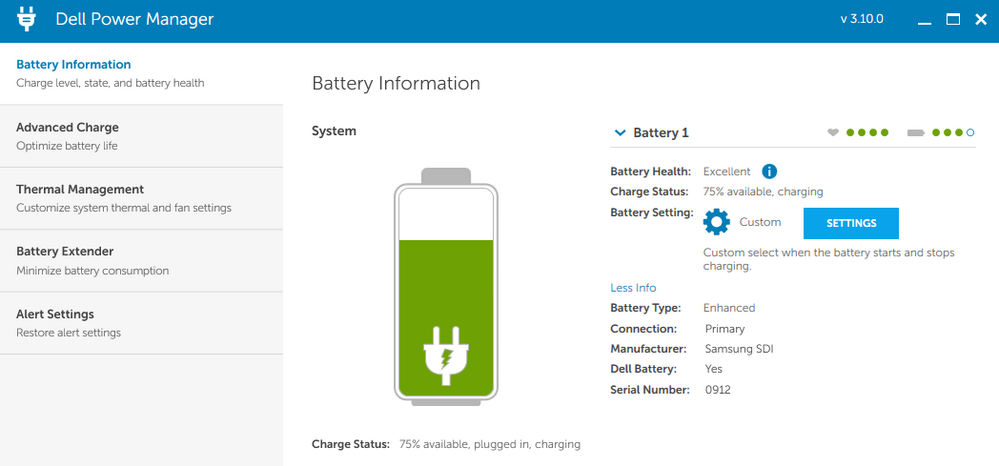
Every major laptop brand — Dell, HP, Lenovo, ASUS, and others — ships their machines with proprietary power management utilities. These apps are supposed to fine-tune how the laptop balances performance and battery life.
The problem is that these tools are notoriously prone to bugs, especially after system updates. We’ve seen customers come in with laptops stuck in an ultra-aggressive battery-saving mode that never turns off, even when they switch to a “balanced” profile. In those cases, the fix is usually simple: reset or reinstall the manufacturer’s power management software and verify the correct profile is active.
2. Windows Power Settings Conflicts
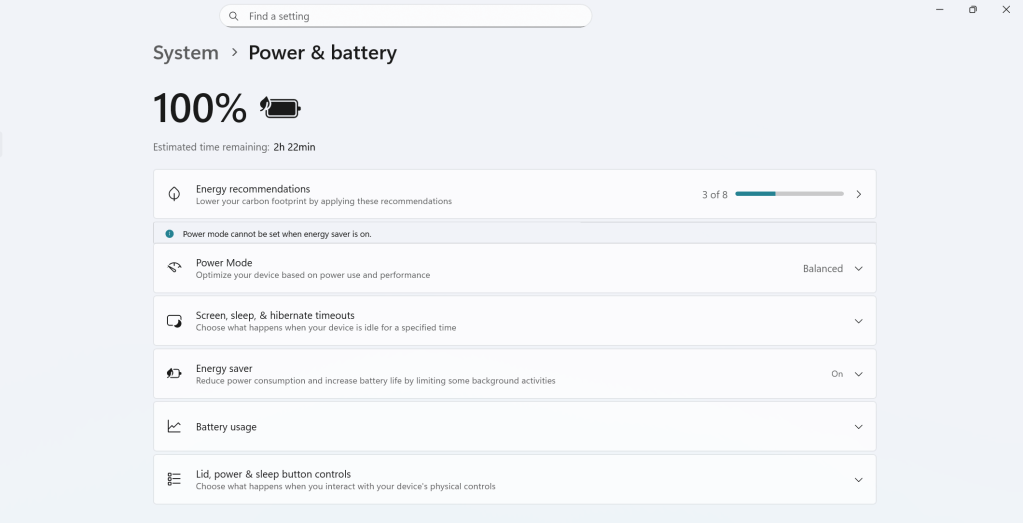
Windows has its own built-in power management system that runs alongside whatever your manufacturer has installed. Most of the time they play nicely together. When they don’t, performance can get weird.
Windows updates occasionally corrupt or reset power plans. A plan that was working fine can suddenly start throttling the CPU far more aggressively than it should. If your laptop’s behavior changed noticeably after a Windows update, this is worth checking first.
For persistent cases where the power settings seem broken or inconsistent, a clean Windows reinstall is often the most reliable fix. It clears out conflicting software, resets power profiles to default, and lets the manufacturer utilities reinstall cleanly. It sounds drastic, but it works.
Is It Ever a Hardware Problem?
Occasionally, yes — but it’s less common than people assume, and it’s usually accompanied by other, more obvious symptoms.
A failing battery tends to announce itself with things like:
- Rapid battery drain (going from 100% to empty in an hour or less)
- Unexpected shutdowns when unplugged
- The battery percentage jumping around erratically
- Battery health warnings from the operating system
If you’re only seeing a slowdown on battery — with no other symptoms — the battery itself is probably fine. A battery that was degraded enough to cause severe performance throttling would almost certainly be showing those other signs first.
Other hardware failures that affect performance (like a dying storage drive or failing RAM) typically cause crashes, freezes, or complete instability — not a selective slowdown that only appears off the charger.
What You Can Do Right Now
If your laptop’s battery performance feels worse than it should, here’s a practical order of steps to try:
- Check your power plan. On Windows, go to Settings > Power & Sleep > Additional power settings and make sure you’re on “Balanced” or a manufacturer-recommended profile, not “Battery Saver.”
- Open your manufacturer’s utility (Dell Power Manager, HP Command Center, Lenovo Vantage, ASUS Armoury Crate, etc.) and verify the performance mode is set appropriately.
- If things changed after a Windows update, try rolling back or running Windows Update again to see if a patch is available.
- If nothing helps, a clean OS reinstall is worth considering before spending money on hardware repairs.
The Bottom Line
Your laptop running a bit slower on battery is normal, by design, and nothing to worry about. The question is how much slower — and whether it’s affecting your ability to actually use the machine.
If the lag is extreme, start with software before assuming the worst. The majority of cases we see like this resolve without any hardware work at all.
And if you’ve worked through the troubleshooting steps and still can’t figure it out, stop by our shop in Downtown, Los Angeles. We’re happy to take a look, give you an exact assessment, and let you know what’s actually going on before recommending anything.
 ITBrother