

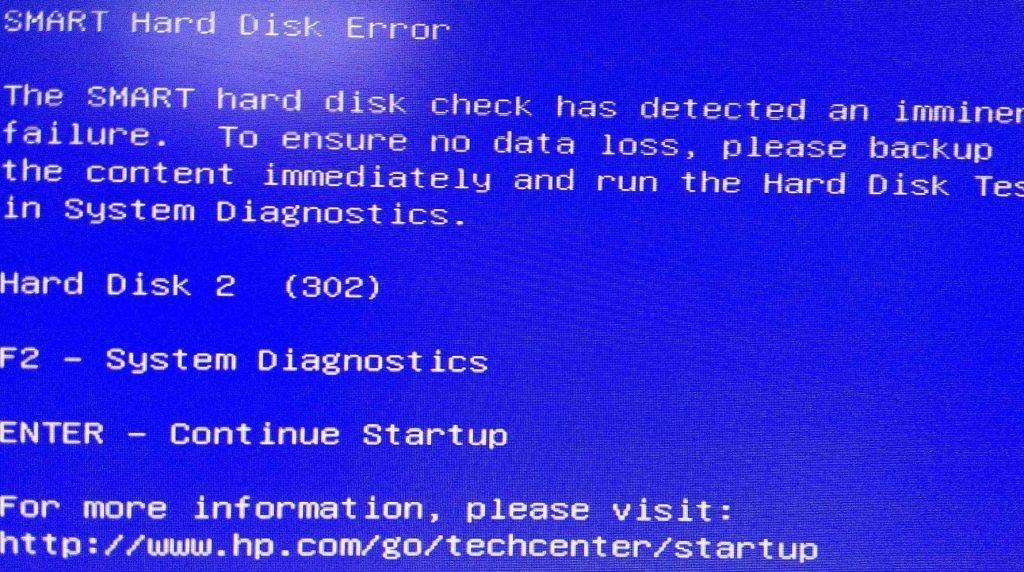
If your computer has been acting strange lately — freezing randomly, refusing to boot, or files that suddenly won’t open — there’s a chance your storage drive is starting to fail. But here’s something most people don’t know: if you have a newer laptop or desktop with a solid-state drive (SSD), failure looks completely different than what you might expect from an older hard drive (HDD). And that difference matters a lot — especially when it comes to saving your data.
Let’s break down what’s actually happening inside each type of drive, how failure shows up differently, and what you should do if you think your drive is on its way out.
First, a Quick Look at How Each Drive Works
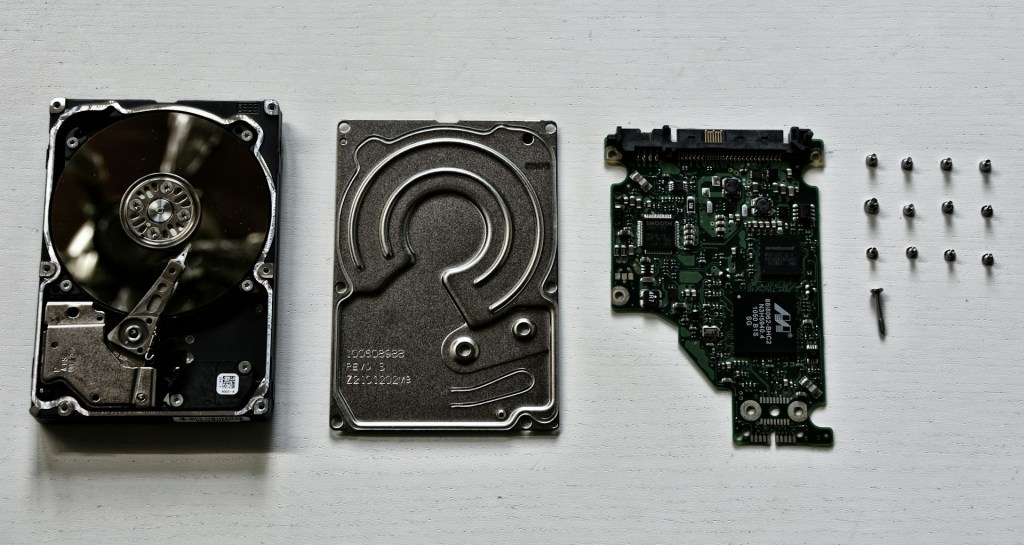
A traditional hard drive (HDD) stores data on spinning magnetic platters. A tiny read/write head floats just above the surface and moves back and forth to access your files — kind of like a record player. Because there are moving parts, these drives are vulnerable to physical damage, and they tend to give you warning signs before they fully fail.
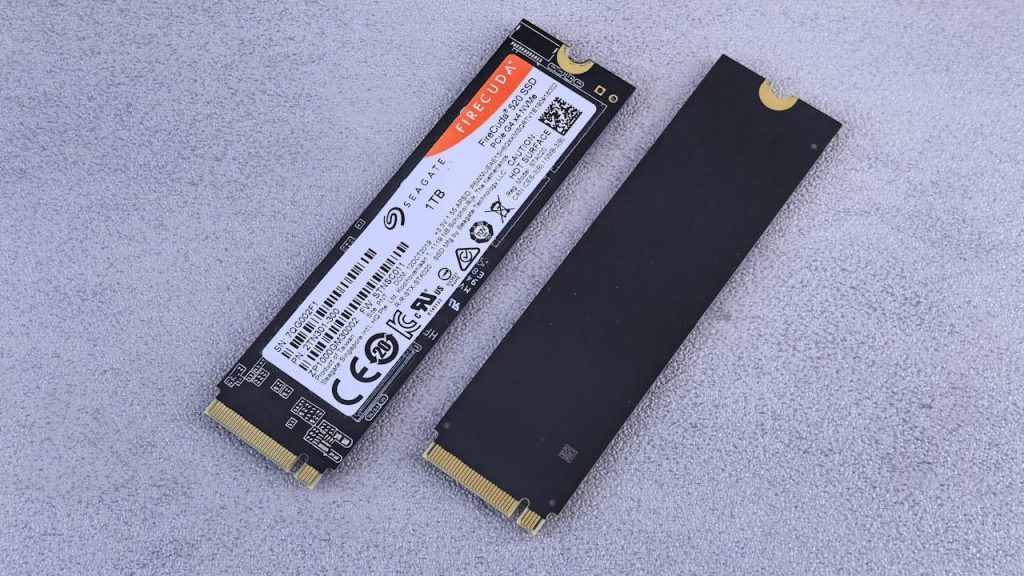
An SSD, on the other hand, has no moving parts at all. It stores data in NAND flash memory chips — the same type of technology used in USB drives and phone storage. Data is written and read electronically, which makes SSDs faster and more resistant to bumps and drops. But “no moving parts” doesn’t mean “indestructible.” SSDs fail in their own unique ways.
How HDD Failure Usually Shows Up
Because HDDs are mechanical, they typically warn you before they die. Common signs of a failing hard drive include:
• Clicking, grinding, or whirring sounds coming from the drive
• Slow file access or loading times that get progressively worse
• Frequent crashes or the Blue Screen of Death (BSOD)
• Files that go missing or become corrupted
• The drive showing up inconsistently in your system
The silver lining with HDDs is that this slow decline gives you time to act. Most people who lose data from a failing hard drive had some warning — they just didn’t recognize it or act fast enough.
How SSD Failure Is Different — And Why It Catches People Off Guard
This is where things get important. SSDs can — and often do — fail with little to no warning. One day everything seems fine. The next day, your computer won’t turn on, or your drive simply isn’t recognized at all. That’s not an exaggeration. It’s one of the most common things we see in our shop.
Here’s why SSDs fail, and how each type of failure tends to show up:
1. NAND Flash Wear-Out
Every memory cell in an SSD can only be written to a certain number of times before it wears out. This is called the write endurance limit. For most everyday users, this takes years to become a problem — but on drives that handle heavy workloads (like video editing or running virtual machines), it can happen sooner. Once cells start to fail, the drive may begin marking those areas as unusable, which shows up as slowdowns or file errors.
2. Sudden Power Loss
Unlike HDDs, SSDs are particularly sensitive to unexpected power cuts. If the power goes out mid-write, the SSD’s internal controller can get confused — and in some cases, the drive can become completely unresponsive. Some SSDs have power-loss protection built in, but many consumer-grade drives don’t.
3. Controller Failure
The controller chip is the brain of the SSD — it manages where data gets written and read. When the controller fails, the drive can become completely inaccessible even if the actual flash memory cells are still perfectly intact. This is one of the trickier scenarios for data recovery, but it’s not always hopeless.
4. Firmware Bugs
SSDs run software (firmware) that controls how the drive operates. In some cases, buggy firmware updates or manufacturing defects can cause a drive to become unreadable or enter a “frozen” state. Some manufacturers have issued recalls or patches for known firmware issues, which is one reason it’s worth keeping an eye on your drive’s make and model.
Warning Signs to Watch For (Yes, SSDs Do Have Some)
While SSDs are less likely to give advance notice than HDDs, they’re not completely silent. Here are some signs that your SSD might be struggling:
• Your computer is noticeably slower than usual, especially when opening files or apps
• You’re seeing frequent application crashes or system freezes
• Files are mysteriously corrupted or won’t open
• Your system can’t find the drive at startup, but works after a restart
• You’re getting read/write errors when saving or opening documents
If you’re seeing any of these, don’t wait. Back up your data immediately and bring the drive in for a diagnostic check.
What About Data Recovery?
Here’s the honest truth: data recovery from a failed SSD is harder than from a failed HDD — and more expensive — but it’s not always impossible.
With HDDs, the data is stored magnetically on physical platters. Even if the drive mechanism fails, a skilled technician can often recover data by working with the platters directly. With SSDs, the data is spread across multiple flash chips using a process called wear leveling, and it’s encrypted at the hardware level on many modern drives. That makes recovery more complex.
The biggest factor in whether data can be recovered from a failed SSD is how and why it failed. Controller failure with intact chips? Possible. Complete write endurance failure with a heavily degraded drive? Much harder. This is why acting quickly at the first sign of trouble is so important — the longer you wait (or worse, keep using a failing drive), the lower the chances of getting your data back.
The Best Thing You Can Do Right Now
Whether you have an SSD or an HDD, the answer is the same: back up your data regularly. Both drives will eventually fail — it’s just a matter of when. A good backup strategy (even just copying important files to an external drive or cloud storage once a week) can make the difference between a minor inconvenience and a major loss.
If you’re not sure what type of drive you have, or if you’re concerned about your computer’s performance, we’re happy to take a look. A quick diagnostic can tell you the health of your drive and give you time to act before things get worse.
Have questions about your drive or think something might be wrong? Stop by our shop located in Downtown, Los Angeles or give us a call — we’ll give you a straight answer about what’s going on and what your options are.
