

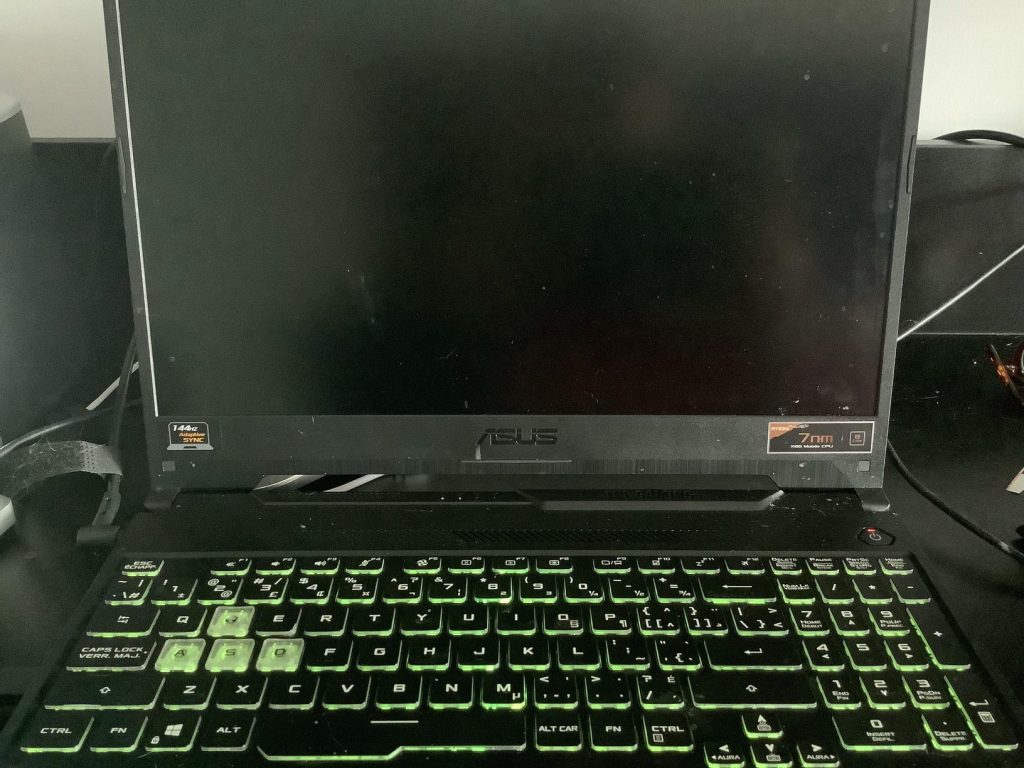
Few things are more disruptive than a laptop screen that randomly goes black. One moment you’re working — and the next, nothing. The laptop is still on, the fan is still running, but the display is completely dark.
After years of diagnosing laptops at our shop, we’ve noticed a clear pattern: the vast majority of random black screen issues come from a small handful of causes related to the display hardware itself. There are other possibilities too, but they’re far less common — and they almost always show other symptoms before the screen starts cutting out. We’ll cover both groups so you know what to look for.
The Most Likely Causes (~95% of Cases)
If your laptop screen is going black randomly with no other obvious warning signs, the problem almost always traces back to one of these four things: the display cable, the LCD panel or backlight, the graphics system, or the motherboard. These are hardware-level issues that directly control what you see on screen — so when something goes wrong here, a black screen is often the first and only symptom.
1. Loose or Damaged Display Cable
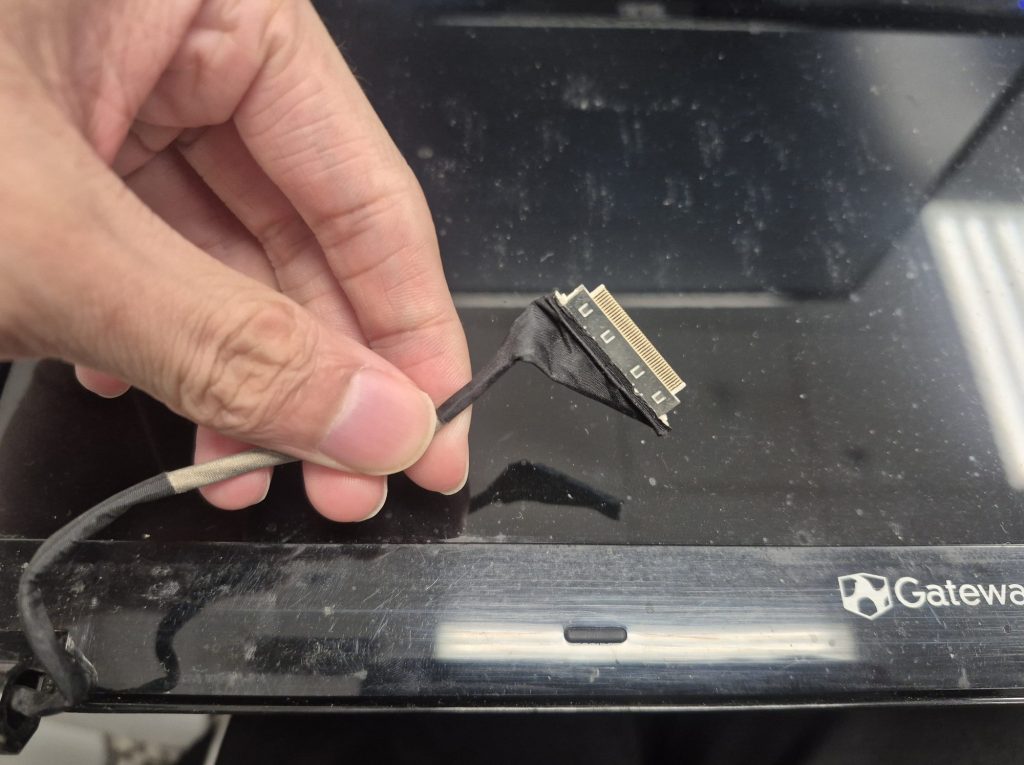
Inside your laptop’s hinge runs a thin ribbon cable — called the LVDS or eDP cable — that carries the video signal from the motherboard to the screen. Every time you open and close your laptop, that cable flexes. Over time, it can wear down, fray, or partially disconnect. When the connection becomes intermittent, the screen cuts out at random.
This is one of the most common causes we see, especially on laptops that are a few years old and have been opened and closed thousands of times.
Telltale sign: The screen flickers or comes back on when you gently adjust the lid angle. If moving the lid changes what the screen does, the cable is almost certainly involved.
2. Failing LCD Panel or Backlight
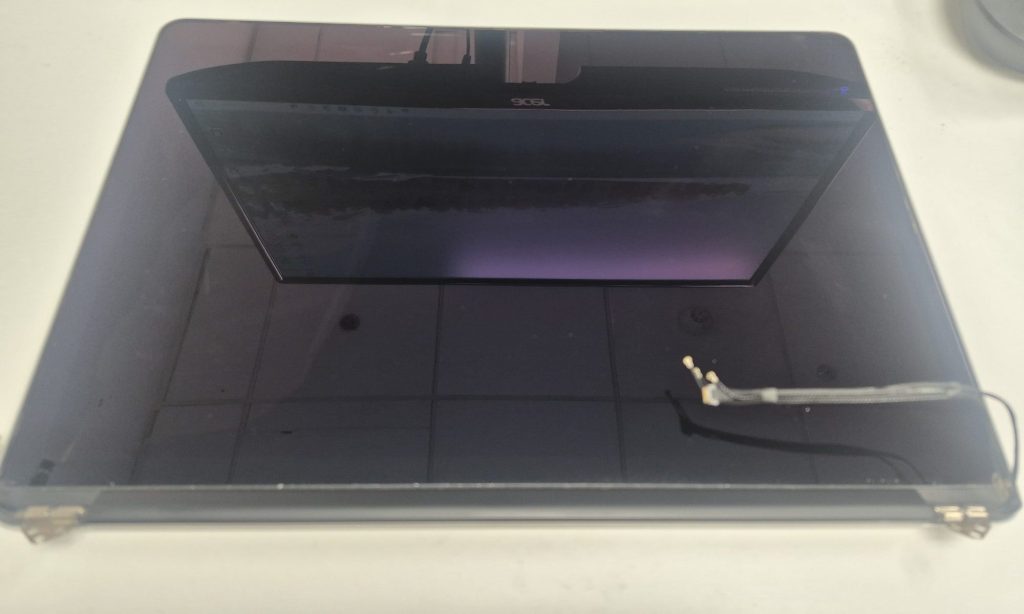
The LCD panel is the screen itself. Inside it, LED backlights illuminate the display so you can see the image. When the backlight starts to fail, the screen can go dark even though the laptop is still sending a picture signal — it’s just not being lit up.
You can do a quick test at home: in a dark room, shine a flashlight at an angle against your screen while the laptop is on. If you can faintly make out your desktop or cursor, the backlight is failing but the panel is still getting a signal. If you see absolutely nothing even with the flashlight, the panel itself may have failed.
Telltale sign: Screen goes black but the laptop is clearly still running (keyboard lights on, sounds playing, etc.). The flashlight test shows a faint image behind the darkness.
3. Graphics Driver or GPU Issues
Your graphics system — both the physical GPU chip and the software driver that controls it — is directly responsible for what gets displayed on screen. When either one has a problem, a black screen is a very typical result.
Driver issues are especially common after a Windows Update that silently installs a new graphics driver. The system keeps running, but the display connection drops. On the hardware side, laptops with dedicated GPUs (like NVIDIA or AMD) can develop GPU faults that cause the same intermittent blackout behavior.
Telltale sign: The black screen started after a Windows update, or your laptop has a dedicated GPU and the screen cuts out during graphically intensive tasks like gaming or video editing.
4. Motherboard or Component Failure
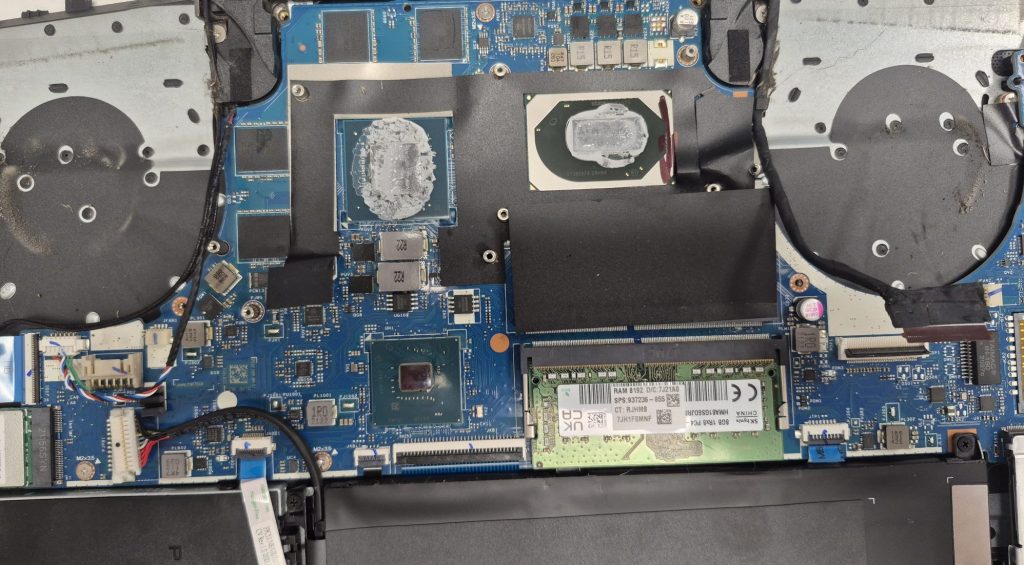
The motherboard is the backbone of your laptop — everything runs through it, including the display output. Components like the GPU chip (soldered directly to the motherboard on most modern laptops), voltage regulators, or display output circuits can degrade or fail over time. When they do, a randomly blacking-out screen is one of the symptoms you might see.
This is less common than a cable or panel issue, but it does happen — especially on laptops that have taken a fall, been exposed to liquid, or are several years old with heavy use. Long-term heat exposure can also slowly degrade solder joints over time.
Telltale sign: The problem appeared after a drop or liquid spill, the laptop is several years old with heavy daily use, or no other cause (cable, panel, drivers) explains what’s happening. Motherboard repairs are among the more involved fixes, but in many cases they’re still worth doing compared to replacing the whole machine.
Less Common Causes (~5% of Cases)
The following causes can technically result in a black screen, but in practice they almost always produce other noticeable symptoms first — things like slowdowns, crashes, error messages, or unusual hardware behavior. If your only symptom is a randomly blacking-out screen with nothing else going wrong, these are less likely to be the culprit. That said, they’re worth knowing about.
Overheating
When a laptop overheats, it will throttle performance and eventually shut things down to protect the hardware — including the display. However, before a screen goes black from heat, you’d typically notice the laptop running very hot to the touch, the fan running at full speed, and performance slowing to a crawl.
Other symptoms you’d notice first: Extremely hot chassis, loud constant fan noise, system slowdowns, apps freezing or crashing before any display issues.
RAM / Memory Errors
Faulty RAM can cause system instability that sometimes results in a black screen, but memory errors tend to announce themselves in other ways first — random crashes, Blue Screens of Death (BSODs), programs throwing unexpected errors, or the system failing to boot properly.
Other symptoms you’d notice first: Blue screen errors (BSODs), random crashes, boot failures, apps crashing unexpectedly before display issues occur.
Battery or Power Delivery Problems
A failing battery can cause voltage inconsistencies that affect the display. But again, you’d normally see other signs first — the battery percentage jumping around erratically, the laptop dying unexpectedly at 30%, or shutting off suddenly when you unplug the charger.
Other symptoms you’d notice first: Wildly inaccurate battery percentage, sudden shutdowns when unplugged, very short battery life, laptop only working on AC power.
How to Diagnose a Laptop Black Screen at Home
If your screen is blacking out randomly with no other strange behavior, start by asking yourself these questions:
- Does the screen respond when you shift the lid angle? (Points to a cable issue)
- Can you faintly see the desktop with a flashlight in a dark room? (Points to backlight failure)
- Did this start after a Windows update? (Points to a driver issue)
- Do you have a dedicated GPU, and does it happen under load? (Points to a GPU fault)
Your answers can point you in the right direction. That said, display cable and panel repairs require disassembly, and GPU issues can sometimes mean a motherboard-level repair — these aren’t ideal DIY projects unless you’re experienced with laptop hardware.
Not Sure What’s Wrong?
Bring it in to our shop located in Downtown, Los Angeles any time, or give us a call if you’d like to describe what’s happening before you make the trip. We’ll look at it, tell you exactly what’s wrong, what it’ll cost to fix, and let you decide how to move forward.

