

You sit down at your desk, open your MacBook, and before you’ve even launched a single app — the fan kicks in. Loud, persistent, and oddly alarming. If your MacBook fan is running at full speed when it’s doing nothing, you’re not alone, and you’re right to pay attention to it.
This post breaks down exactly why it happens, what it means for your machine, and what you can do about it.
Idle Means Idle — So Why Are the Fans Running?
A MacBook’s fans should be near-silent during everyday use. Browsing, writing, jumping between apps — none of that should spin them up noticeably. When they’re loud and nothing is open, it’s a sign that something is going on internally.
The frustrating part is that it’s not always obvious what’s causing it. It could be a software process you can’t see, a hardware component that’s worn down, or the cooling system simply losing its ability to keep up. Each of those has a different fix — so let’s go through them one by one.
6 Common Causes of MacBook Fan Noise at Idle
1. A Runaway Background Process
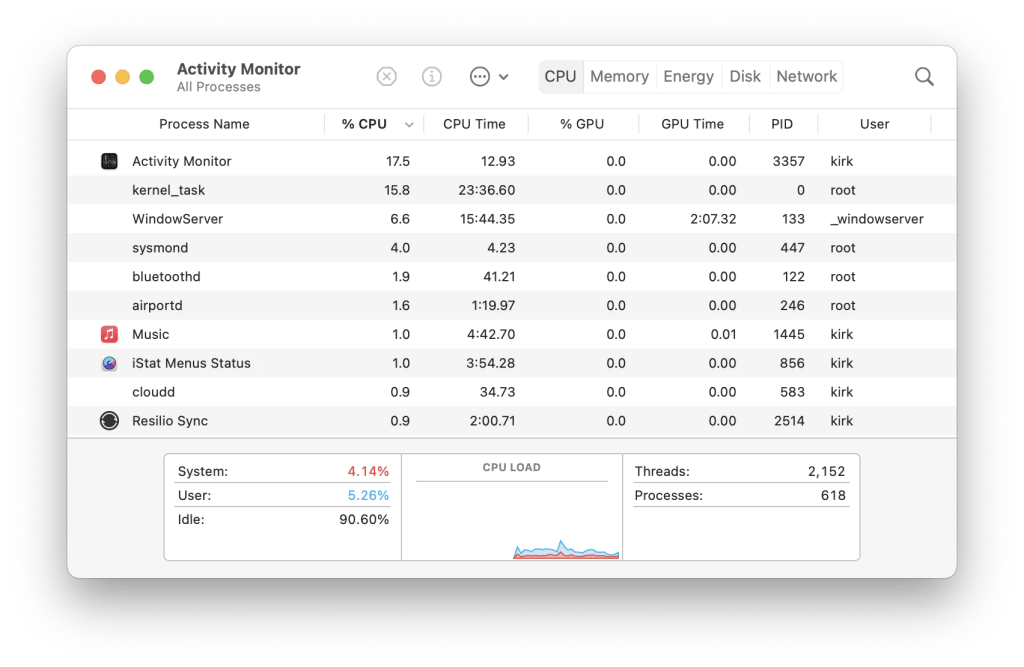
An app or system process can sometimes get stuck in a loop, consuming massive CPU resources in the background — even though you don’t see anything running on screen. Your Mac’s processor heats up, the fans respond, and you’re left wondering what’s happening.
| How to check Open Activity Monitor (Applications → Utilities → Activity Monitor), click the CPU tab, and sort by CPU usage. If anything is sitting at 80–100% and you don’t recognize it, that’s your culprit. Common offenders: browser tabs running heavy scripts, antivirus scans, Spotlight indexing after an update, or poorly optimized apps. |
2. Spotlight Indexing After an Update

Every time macOS gets a significant update, Spotlight re-indexes your entire drive so searches stay fast. This is completely normal, but it’s also CPU-intensive — and it runs silently in the background. If your fans kicked in right after a macOS update, this is almost certainly why.
| What to do Give it an hour or two — Spotlight indexing finishes on its own. You can monitor its progress in Activity Monitor by looking for a process called mds or mdworker. |
3. Dust Buildup and Blocked Vents
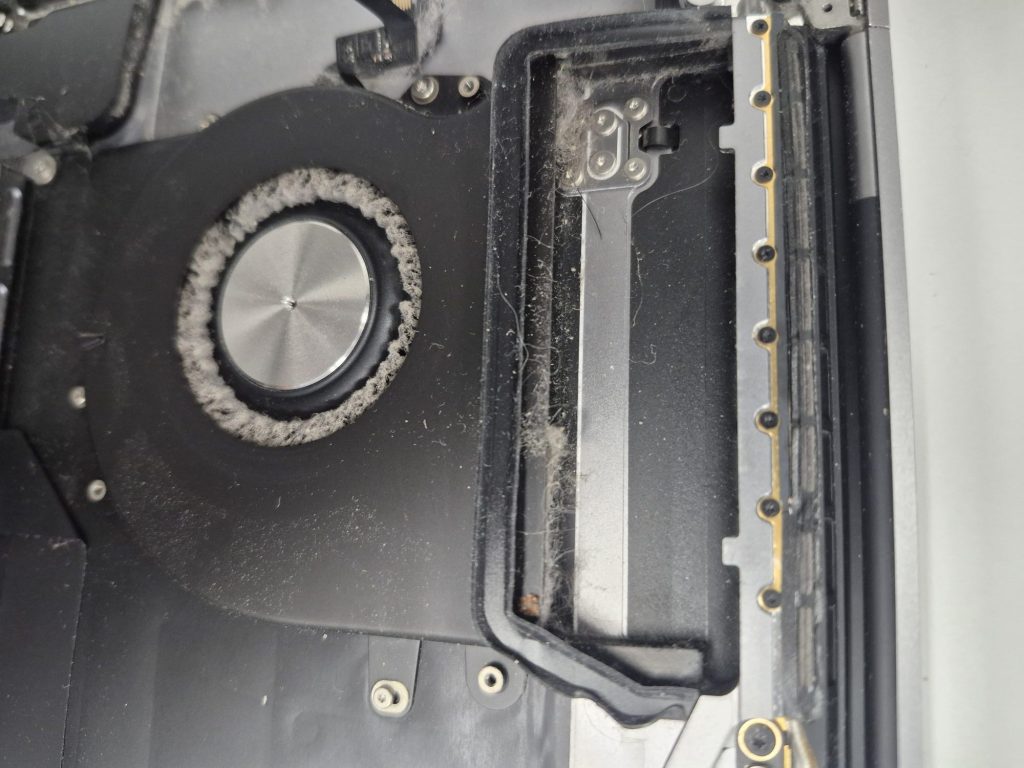
Fans don’t just spin harder when the CPU is stressed — they also spin harder when airflow is restricted. Dust, pet hair, and debris accumulate inside MacBooks over time, clogging the vents and preventing heat from escaping. Even with nothing demanding running, your Mac may struggle to cool itself if airflow is blocked.
This is especially common in MacBooks two to three years old or older. A professional internal cleaning can make a dramatic difference — and it’s one of the most cost-effective repairs we do.
4. Thermal Paste Degradation
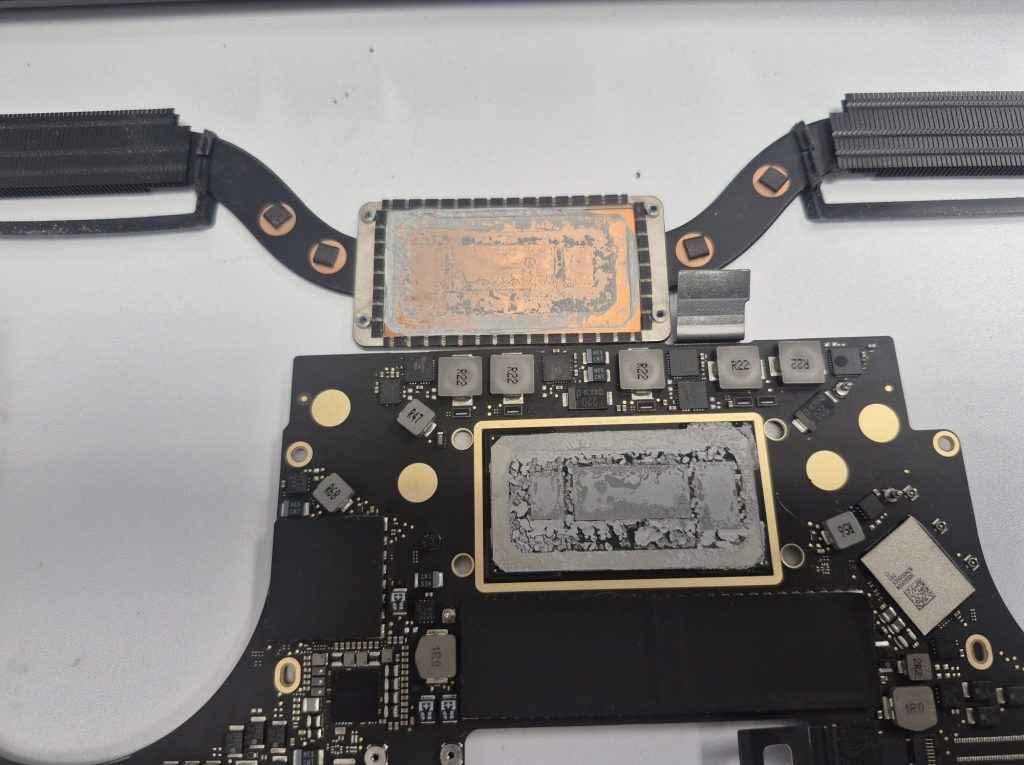
Inside your MacBook, there’s a thin layer of thermal paste between the processor and the heatsink. This paste efficiently transfers heat when fresh, but it dries out and degrades over time — typically after three to five years. When it fails, heat doesn’t transfer as well, and the fans work overtime just to maintain safe temperatures.
If your MacBook is older and the fans have gradually gotten louder, degraded thermal paste is a strong possibility. Replacing it is a straightforward repair for a trained technician, and it can bring temperatures down by 10–20°C.
5. SMC Issues (Intel Macs Only)
The System Management Controller (SMC) is a chip inside Intel-based MacBooks that manages power, battery, thermals, and fan behavior. If it gets confused or corrupted, it can cause fans to run at full blast constantly, regardless of actual temperature.
| How to fix it You can reset the SMC yourself without losing any data. The steps vary slightly by model — check Apple’s support page for your specific machine. Note: Apple Silicon Macs (M1, M2, M3, M4, and newer) don’t have an SMC. A full shutdown and restart handles the equivalent function automatically. |
6. A Failing Fan or Faulty Temperature Sensor
Sometimes the hardware itself is the problem. A fan bearing can wear out, causing it to spin noisily or inconsistently. Alternatively, a faulty temperature sensor may feed inaccurate readings to the system, making your Mac think it’s overheating when it isn’t — and crank the fans up in response.
If you’ve ruled out software issues and the fan noise sounds irregular — grinding, clicking, or pulsing — a hardware inspection is the right next step.
How Serious Is It? A Quick Self-Triage
Not all fan noise means the same thing. Here’s how to read the situation:
| ✅ Probably nothing to worry about (yet) Fans started after a macOS update, calm down after 30–60 minutes, and your Mac isn’t hot to the touch. This is almost always Spotlight indexing or a background update wrapping up. Give it time. |
| ⚠️ Worth keeping an eye on Fans run consistently during light use and your Mac feels warmer than usual, but performance is normal. This points to dust buildup or early thermal paste degradation. Not an emergency, but it won’t fix itself — and ignoring it long enough turns a cheap cleaning into a more expensive repair. |
| 🔶 Act sooner rather than later Fans are loud even after a fresh restart with nothing open, the bottom of your Mac is uncomfortably hot, or you’re noticing slowdowns alongside the noise. The cooling system is genuinely struggling, which puts real stress on internal components over time. |
| 🚨 Don’t wait You hear grinding, clicking, or rattling from the fan. That’s mechanical failure in progress. A fan that fails completely means your Mac has no way to cool itself — and the next thing to go will be something much more expensive. |
When to Bring It In
If your situation falls into the “act sooner” or “don’t wait” categories above, it’s time to let a professional take a look. Specifically, come in if:
- The fan is making grinding, clicking, or rattling sounds
- Your Mac is getting unusually hot to the touch
- Performance has slowed noticeably alongside the fan noise
- The issue started after a drop, spill, or physical impact
- Your MacBook is 3+ years old and has never had a cleaning or thermal paste replacement
Ignoring persistent fan noise isn’t just annoying — it’s a warning sign. Components that run too hot for too long can sustain permanent damage, and repairs get more expensive the longer you wait.
Frequently Asked Questions
Is it normal for a MacBook fan to run all the time?
No. Under normal conditions, MacBook fans should be nearly silent during light use and only spin up during demanding tasks like video editing or gaming. If the fan is running constantly at idle, something is driving extra heat — or the fan system itself needs attention.
How do I stop my MacBook fan from being so loud?
Start by checking Activity Monitor for any process using excessive CPU. If nothing unusual is running, try a full restart. If the noise persists, the most common fixes are a professional internal cleaning (to clear dust from the vents) or a thermal paste replacement for older machines.
Can a MacBook fan running constantly damage my computer?
The fans themselves won’t cause damage — they’re doing their job. But what’s driving them to run constantly might. Sustained high temperatures accelerate wear on the processor, battery, and other components. It’s worth diagnosing sooner rather than later.
Does Apple Silicon (M1, M2, M3, M4) have fan issues too?
Apple Silicon MacBooks run significantly cooler and quieter than Intel predecessors, and some models like the MacBook Air are completely fanless. That said, MacBook Pros with Apple Silicon do have fans and can still be affected by dust buildup or faulty sensors over time — just less frequently.
Our Take
Fan noise on an otherwise idle MacBook can range from totally benign — Spotlight is still indexing after an update — to genuinely serious, like a failing fan or degraded thermal paste. The good news is that most causes are diagnosable and fixable without replacing any major components.
Have a question about your MacBook or another device?
If you’re unsure what’s going on with your Mac, we’re happy to take a look. Stop by our shop located in Downtown, Los Angeles. We’ll give you a proper diagnosis, walk you through what we find, and let you decide how you want to proceed.
