

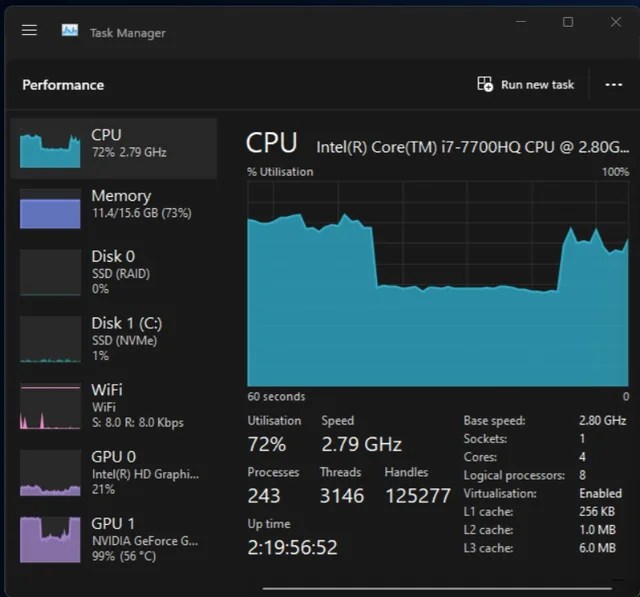
If your laptop feels snappy for the first few minutes of gaming, video editing, or running a big spreadsheet — and then suddenly starts crawling — you’re not imagining it. That’s called thermal throttling, and it’s one of the most common (and most misunderstood) performance issues we see come through our repair shop.
In this post, we’ll break down exactly what throttling is, why it happens even on laptops that aren’t broken, and how to tell the difference between “normal throttling” and “my laptop needs help.”
What Is Laptop Throttling?
Thermal throttling is a built-in safety feature. When your CPU or GPU gets too hot, the processor automatically slows its. This is a safety mechanism. It’s your laptop protecting itself from possible overheating damage.
Every modern laptop chip has a maximum safe operating temperature, usually somewhere between 90°C and 100°C (194°F–212°F). Once the chip approaches that limit, the system’s firmware steps in and reduces performance before things get dangerous.
Think of it like a car’s engine temperature gauge moving into the red zone — except instead of a warning light, your laptop just quietly does less work per second until it cools back down.
Why Does Throttling Happen — Even on a “Healthy” Laptop?
This is the part that surprises a lot of customers: throttling isn’t always a sign something’s wrong. It can happen because of:
1. Thin, Compact Designs

Laptops pack a desktop-level amount of computing power into a case that’s an inch thick. There’s simply less room for heat sinks, fans, and airflow compared to a desktop tower. Thinner laptops (especially ultrabooks) are more prone to throttling by design.
2. Sustained Heavy Workloads
Short bursts of activity — opening an app, loading a webpage — rarely generate enough heat to trigger throttling. But sustained loads like gaming, 3D rendering, video exports, or compiling code keep the CPU/GPU running at high power for extended periods, which is when heat builds up and throttling kicks in.
3. Ambient Temperature and Airflow
Using a laptop on a bed, couch, or pillow blocks intake vents and traps heat underneath the chassis. Even a warm room can raise your baseline temperature enough to trigger throttling sooner than it would in an air-conditioned office.
4. Dust Buildup
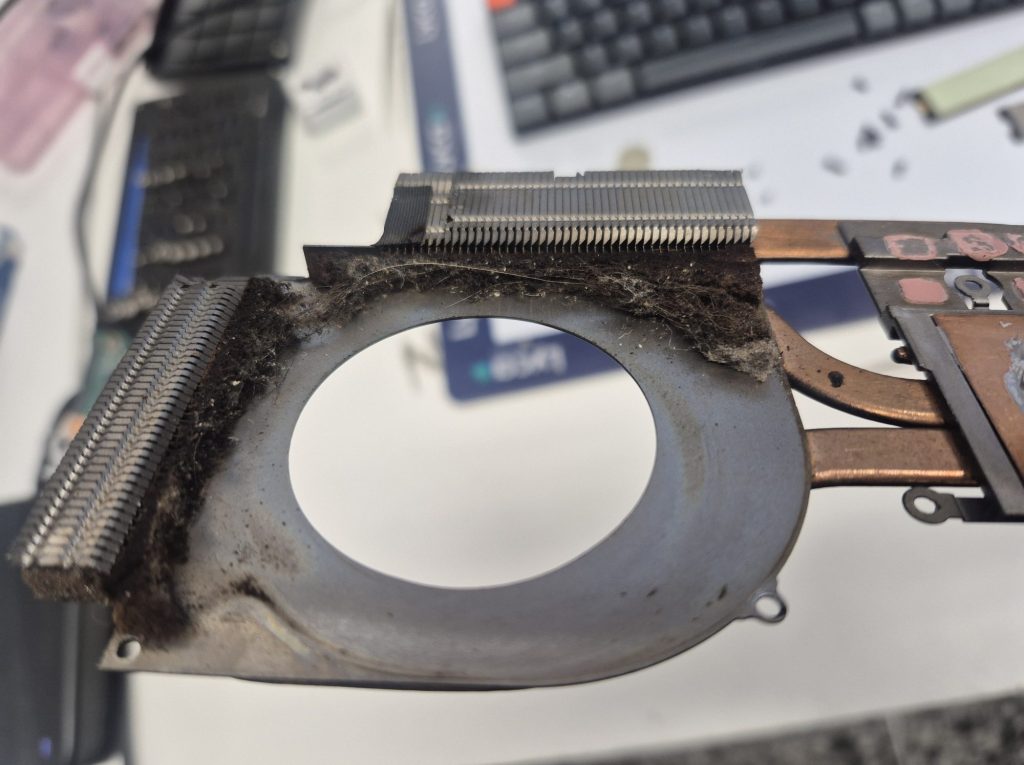
This is where “normal” throttling crosses into “your laptop probably needs a cleaning.” Dust and debris clog fans and heat sinks over time, reducing airflow efficiency. A laptop that throttles a little when new can start throttling constantly after a year or two of dust accumulation — even under light use.
5. Aging or Dried-Out Thermal Paste
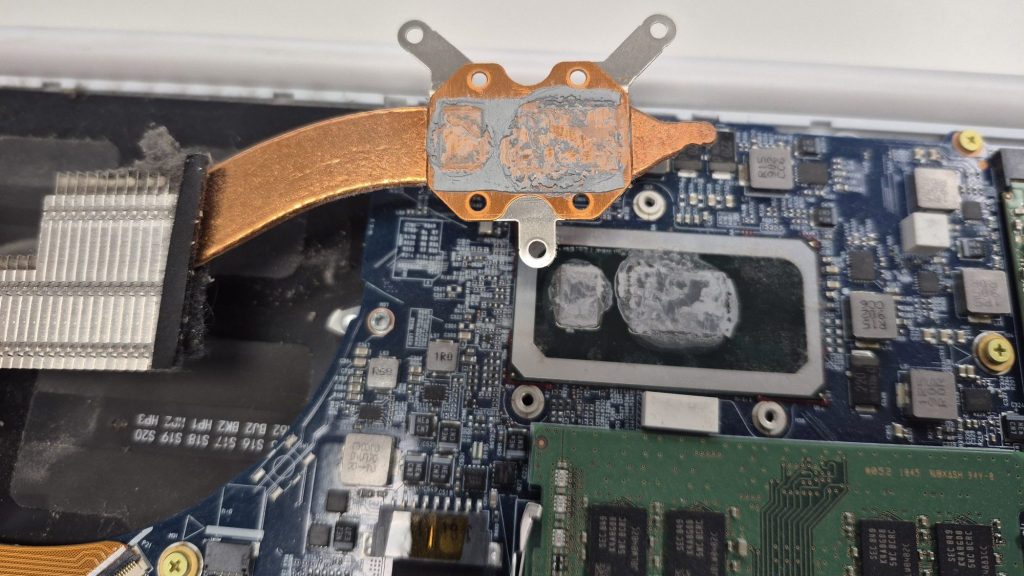
The thermal paste between the CPU/GPU and the heat sink degrades over 2–4 years. As it dries out, it transfers heat less efficiently, so the chip runs hotter at the same workload — leading to earlier and more frequent throttling.
What Throttling Actually Does to Performance
Here’s the part most people don’t realize: throttling doesn’t just make things “a little slower.” It can cause performance to fluctuate dramatically and inconsistently.
- Clock speed drops — A CPU rated to boost to 4.5GHz might get throttled down to 2.0–2.5GHz under sustained load, cutting raw processing power by 40–50%.
- Frame rates stutter — In games, this shows up as smooth performance for a few minutes followed by sudden dips or stutter as the GPU throttles.
- Export and render times balloon — A video export that should take 10 minutes might take 20+ if the CPU is throttling on and off throughout the task.
- Inconsistent benchmarks — This is why two laptops with the “same specs” can perform very differently — one may throttle aggressively due to a weaker cooling design, dust, or old thermal paste.
- Fans ramping loud, then performance still dropping — This combination (loud fans + slowdown) is a strong sign the cooling system is working overtime and losing the battle against heat.
Throttling is also not the same as damage. A throttling laptop is protecting its components. A laptop that doesn’t throttle when it should is the one at real risk — that’s when you start seeing permanent hardware damage, random shutdowns, or a shortened lifespan for the CPU, GPU, or battery.
Normal Throttling vs. “You Should Bring It In”
| Sign | Likely Normal | Likely Needs Repair |
|---|---|---|
| Slight slowdown only during long gaming/render sessions | ✅ | |
| Slowdown within the first 5–10 minutes of light use | ✅ | |
| Fans loud but temps stay reasonable | ✅ | |
| Fans loud AND temps still climbing to 95°C+ | ✅ | |
| Laptop is 3+ years old with no cleaning history | ✅ | |
| Random shutdowns during normal tasks | ✅ | |
| Bottom of laptop uncomfortably hot even when idle | ✅ |
If you’re seeing anything in the right-hand column, that’s usually dust buildup, degraded thermal paste, a failing fan, or blocked vents — all things we can typically resolve without needing a full replacement.
How We Diagnose Throttling Issues
When a laptop comes in with a “it’s just slow” complaint, we don’t just guess — we monitor real-time CPU/GPU temperatures and clock speeds under load to see exactly when and how aggressively throttling kicks in. From there we can usually tell within a few minutes whether the fix is:
- A deep clean of the fans and heat sinks
- A thermal paste replacement
- A fan replacement
- Or, in some cases, confirmation that your laptop is behaving exactly as designed and no repair is actually needed
That last one matters to us. We’d rather tell you your laptop is fine than sell you a repair you don’t need — that’s the whole point of keeping things transparent.
What You Can Do Before Bringing It In
A few things worth checking yourself first:
- Use it on a hard, flat surface — not blankets, beds, or your lap for extended sessions.
- Check the vents — visible dust or lint around fan exhausts is a clear sign a cleaning is overdue.
- Try a cooling pad — an inexpensive stopgap if you frequently run heavy workloads.
If none of that helps and the slowdown is getting worse over time, that’s a good sign it’s time for a professional look rather than a DIY fix.
The Bottom Line
Thermal throttling is a normal, built-in protection — not a flaw. But how much a laptop throttles, and how quickly, tells you a lot about the health of its cooling system. If your laptop used to handle a task fine and now bogs down almost immediately, that’s usually dust, dried thermal paste, or a struggling fan — all repairable, and usually far cheaper than a new laptop.
If you’re not sure which camp your laptop falls into, bring it by our shop in Downtown, Los Angeles and we’ll run the diagnostics and give you a straight answer.
FAQ
Does throttling damage my laptop?
No — throttling is a protective response that prevents heat damage. What can damage components is running hot without throttling working properly, which usually points to a failing cooling system.
Can a software update fix throttling?
Sometimes. BIOS/firmware updates can adjust power limits and fan curves, which occasionally reduces unnecessary throttling. But if the root cause is dust or dried thermal paste, software alone won’t fix it.
Is throttling worse on gaming laptops?
From what we see, yes — gaming laptops usually have better cooling than ultra-thin laptops, but they push components harder. Throttling is more frequent especially if pushed for a prolong period of time.
How often should thermal paste be replaced?
Typically every 2–4 years for laptops under regular heavy use, though this varies by usage patterns and internal design.

