
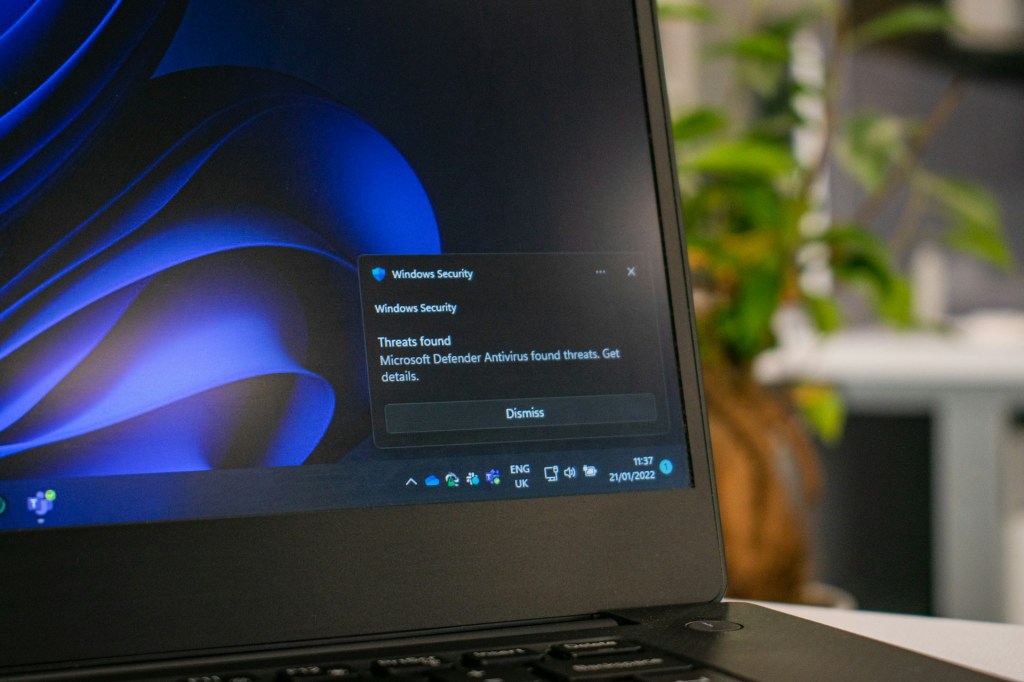
Finding out your computer is infected is unsettling. Maybe you got a scary pop-up that won’t close. Maybe your antivirus flagged something. Maybe your computer is just running strangely — slow, noisy, doing things on its own — and someone told you “that sounds like a virus.”
Whatever got you here, take a breath. Most infections are recoverable, and very few of them are the “your life is ruined” disaster that scam pop-ups want you to believe. The honest truth is that there’s no single correct order of steps to fix a malware infection, because not all malware is the same. A browser hijacker, a fake antivirus scareware pop-up, ransomware, and a keylogger are all “infections,” but they behave completely differently and call for different responses. Anyone telling you there’s one universal 1-2-3 checklist that works for every case is oversimplifying it.
Most people also have no way of knowing exactly which type of malware they’re dealing with, and that’s completely normal — you’re not expected to be able to diagnose it yourself. So let’s start with the general things that matter no matter what’s actually on your computer. If you do happen to know (or later find out) what specific type of infection it is, we’ve included some added guidance for a few common types further down.
One thing worth noting: this is a general guideline, not professional cybersecurity advice. We’re a repair shop, not a cybersecurity firm, and we’re not going to say otherwise. What we’re sharing here comes from having seen this situation play out with customers again and again — the general patterns that tend to help and the mistakes that tend to make things worse. For anything involving sensitive business data, compliance requirements, or a serious breach, a dedicated cybersecurity professional is the right call. What follows is meant to help you avoid further damage in the meantime, not replace that kind of expertise.
Disconnect From the Internet — This Is the Most Important First Move
If there’s one thing worth doing before anything else, it’s this: get the computer off the internet. Turn off Wi-Fi, unplug the ethernet cable, or put the device in airplane mode. Do this before you start troubleshooting, before you run a scan, and before you try to figure out what’s wrong.
Here’s why this matters so much: a lot of malware needs an internet connection to actually cause harm. It might be sending your files, passwords, or personal information out to someone else. It might be waiting for instructions from a remote server. It might be trying to spread to other devices on your home or office network. Disconnecting doesn’t undo any damage that’s already happened, but it isolates the problem right where it is — it stops information from going out, and it stops anything new from coming in. Think of it as closing the door before dealing with what’s already inside the house.
This step matters even if you’re not sure how serious the infection is. It costs you nothing to disconnect, and if it turns out to be something more serious than you thought, you’ll be glad you did it early instead of after the fact.
Don’t Panic-Click Anything New
Once you’re disconnected and have a moment to think, resist the urge to start clicking around — closing windows, opening unfamiliar programs, or (once you’re back online) downloading the first “virus removal tool” that shows up in a Google search. If you already have a third party antivirus program installed, run that first and see if it can catch any malware in the system. I would also recommend running the built in antivirus programs provided by Windows (Windows Defender) or Apple (Xprotect).
Change Your Passwords — From a Different, Clean Device
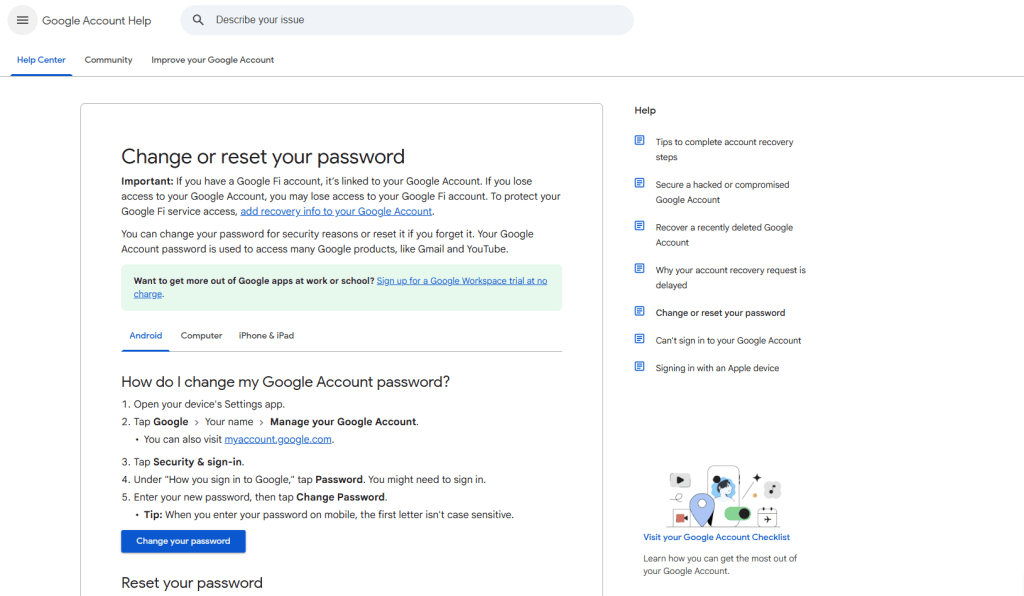
If there’s any chance the infection had access to your accounts (email, banking, social media), it’s smart to change your passwords, especially for anything sensitive. Do this from a phone or another computer that isn’t infected, since typing your password into a compromised machine could hand it right back to whoever’s behind the malware. This matters more if the infection turns out to be something like spyware or a keylogger, but it rarely hurts to be cautious even if you’re not sure.
Back Up What You Can — Carefully
If your files are still accessible, backing up your important documents and photos to an external drive is worth doing early, once you’ve disconnected from the internet and are working from a safe, offline state. Just be aware that if the malware is still active, you could technically back up an infected file along with everything else. It’s not a reason to skip backing up — it’s a reason to have a professional double-check things afterward before you consider that backup “safe” to restore from later.
One exception: if you’re seeing signs of ransomware (a ransom note, or files that suddenly won’t open and have a strange new extension), don’t rush to back things up on your own yet — see the ransomware section below.
Know When DIY Scanning Is Enough — and When It Isn’t
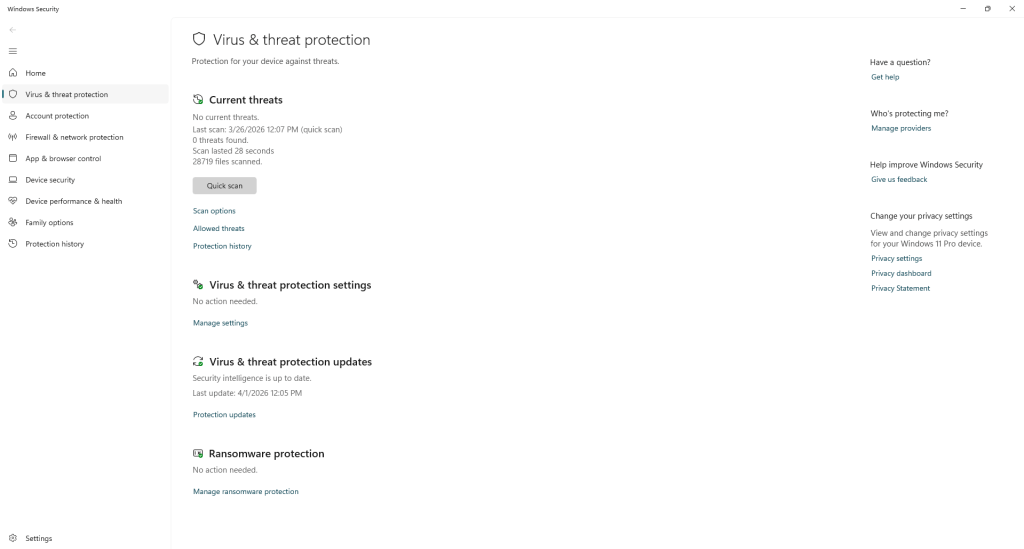
For milder infections — unwanted toolbars, adware, a hijacked browser — running a reputable antivirus or anti-malware scan can genuinely resolve things once you’re confident it’s safe to reconnect. Windows Defender, Malwarebytes, and similar tools handle a lot of common junk without needing a repair shop.
But there are situations where a scan alone won’t cut it: when the infection keeps coming back after removal, when you’re not confident it’s actually gone, when sensitive data may have been exposed, when a ransom note is involved, or when the computer is used for work, taxes, banking, or anything you really can’t afford to get wrong. In those cases, it’s worth having someone take a proper look rather than hoping a scan caught everything. Malware is often better at hiding than we give it credit for, and “the pop-ups stopped” doesn’t always mean the problem is solved.
If You Know (or Later Find Out) What Type of Malware It Is
You don’t need this information to take the steps above — disconnecting, being cautious, protecting your accounts, and backing up carefully all apply regardless. But if you do know what you’re dealing with, either because it’s obvious or because a scan or a technician told you, here’s how a few common types differ.
Ransomware
If you’re seeing a ransom note or files that suddenly won’t open and have a strange new extension, treat this as the most urgent scenario. Don’t pay the ransom, and don’t assume that a quick scan will undo the damage — ransomware behaves very differently than most other malware, and what you do in the first hour can affect whether your data is recoverable at all. Getting a professional opinion quickly matters more here than almost anywhere else.
Spyware or keyloggers
These are designed to quietly watch what you do and steal information rather than announce themselves with pop-ups. If this is what you’re dealing with, changing your passwords from a clean device and monitoring your accounts for unusual activity becomes especially important, since the goal of this type of malware is usually theft, not disruption.
Adware or browser hijackers.
These show up as pop-ups, a new toolbar, or a homepage/search engine that changed without your permission. They’re annoying and can slow your computer down, but they’re generally lower-risk than the categories above. A reputable scan is often enough to clear these out.
Fake antivirus / scareware.
These pop-ups try to convince you that you’re already infected and pressure you to call a number or download “protection” immediately. Ironically, the real danger here is often the scam itself, not an actual infection — don’t call any number or install anything the pop-up tells you to.
If You Bring It to Us — And the Bottom Line
You don’t need to know exactly what kind of malware you’re dealing with to respond well. Disconnect from the internet first, stay cautious about what you click or install, protect your accounts, and back up carefully once you’re safely offline. If you do learn more about the specific type of infection along the way, great — it can help guide what comes next.
And if you’re ever unsure, or it feels bigger than you can handle on your own, feel free to give us a call or stop by our shop in Downtown, Los Angeles. When customers bring in an infected machine, we don’t just run one scan and call it done. We look at what type of infection it actually is, check whether anything is still trying to run in the background, and talk you through what we found.

