

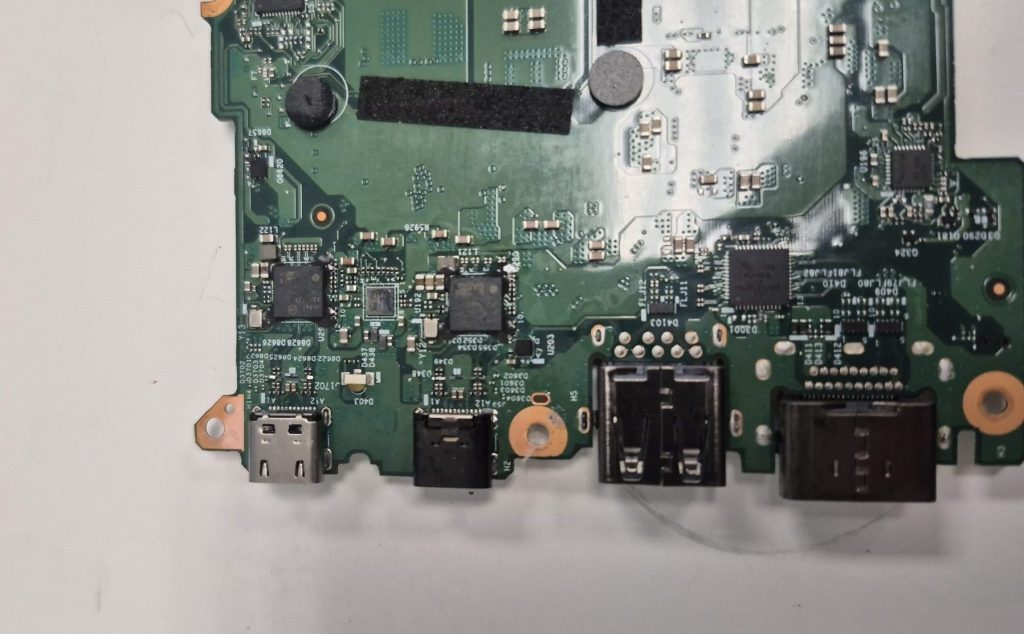
Got a Lenovo ThinkPad X1 Carbon (Gen 6) in with a broken USB-C port. This wasn’t your typical broken USB port, where the laptop just isn’t charging or something minor like that. This was a complete removal from the motherboard itself. The customer said the port was pushing inward into the laptop, and that the charger wasn’t charging it at all which obviously made sense.
What surprised me with this one was that these ThinkPads usually have multiple USB-C ports capable of charging the laptop. But the customer told me the second USB-C port was missing entirely when they got the laptop, which doesn’t make sense at all. Regardless, the job was the same either way: get the port replaced or resoldered back on.
Getting a Look at the Damage
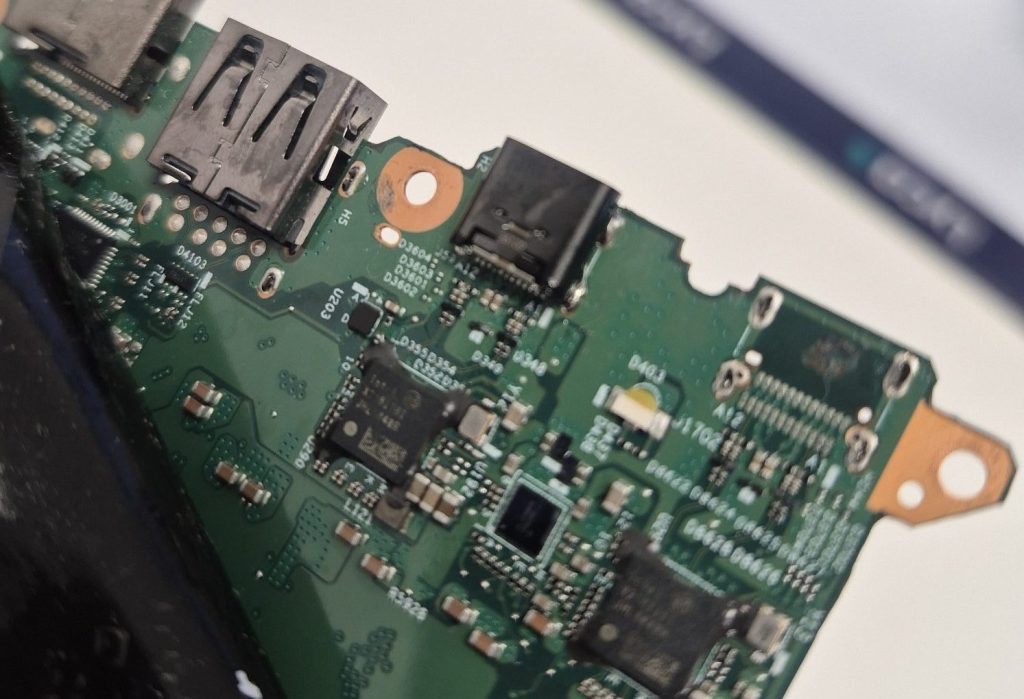
Opening up the laptop was simple enough — remove all the screws on the back cover and lift it off the plastic latches. Once the cover was off, I could clearly see the USB-C port completely detached from its motherboard mount, along with the empty space where the second port should have been.
We do see USB-C ports go bad from time to time due to normal wear and tear, but it’s rare to see one break off completely. These ports are usually held down by both glue and solder joints, so there’s normally enough holding them in place to prevent this. When I looked closer, the amount of glue and solder that had been used on this one was a lot less than what I’d expect to see.
Checking for Damage Before Assuming It’s a Simple Fix
Before doing anything else, I had to verify that all the pins were intact and that there were no broken traces anywhere — especially considering this port had been completely dislodged from its original placement. That kind of movement can easily take pins or copper traces with it.
As much as I want to take a customer’s word for what happened, a lot of the time people don’t have the full story, not because they’re hiding anything, but because they genuinely don’t know what happened inside their own laptop. So I had to check for myself to make sure there wasn’t any severe damage from when the port came loose, rather than just assuming it was a straightforward reattachment.
Fortunately, there was no visible damage to the pins or traces on either the motherboard or the port itself. That meant this repair really was as simple as reattaching the port to its original spot and making sure there was enough solder to hold it down properly.
Reattaching the First Port
Once the port was reattached, I plugged in the charger, and as expected, it charged the laptop’s battery with no issues. I called the customer right away to let them know the charging port was fixed and working. We’d talked beforehand about reattaching the dislodged port, but only on the condition that there was no damage to the pins or traces — and in this case, there wasn’t.
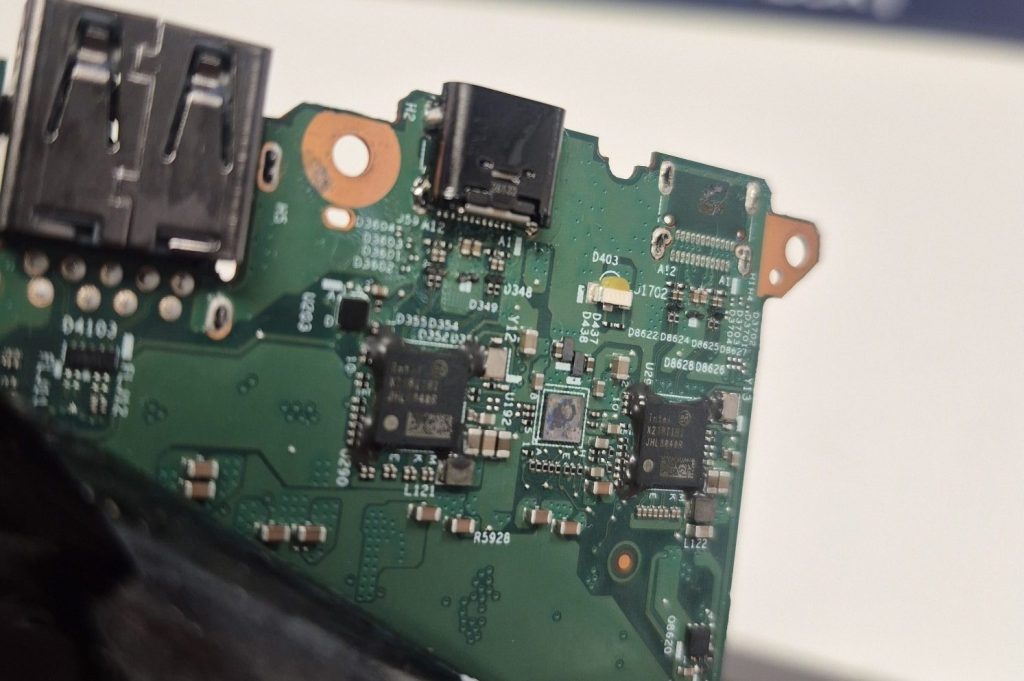
That’s when we got into the second port — the one that was missing entirely. Obviously, having two working USB-C ports is better than just one, so it made sense to fix it while the laptop was already open. The customer decided to go ahead with it, and we ordered a compatible USB-C port for their ThinkPad.
Replacing the Missing Second Port
When the replacement part arrived, the process was basically the same as the first repair. I made sure all the pins were properly connected with solder and that the joints were firmly in place, with a healthy amount of solder so this kind of thing doesn’t happen again unless there’s a major accident involved.
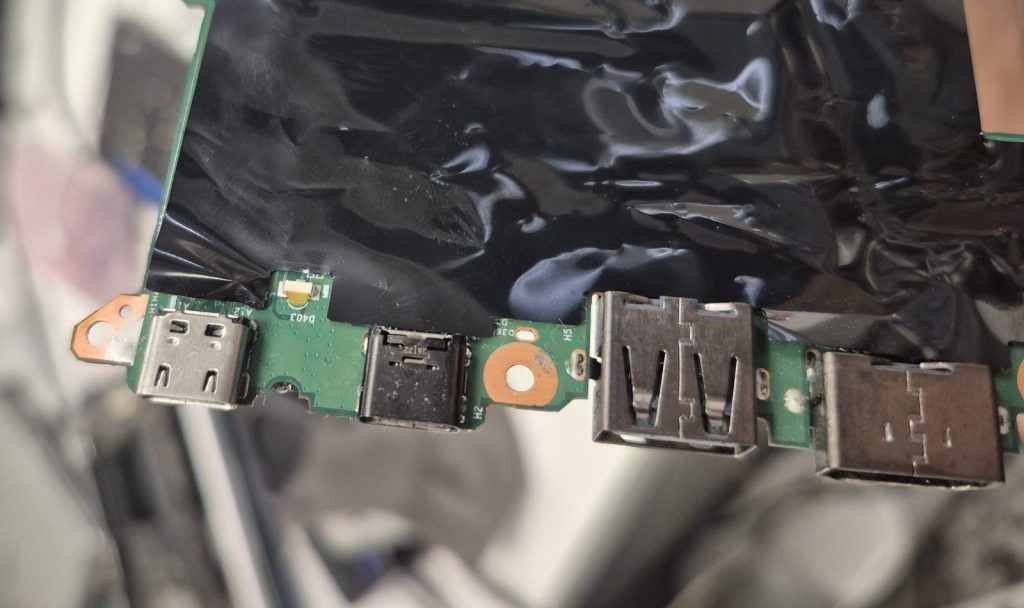
The replacement port looked a little different from the original, but that doesn’t really matter as long as the connections are the same. There is one important caveat here, though, and it’s worth repeating: the port has to be made for, or confirmed compatible with, the specific laptop. USB-C looks nearly universal on the outside, but the pin layout and how it communicates with the rest of the device can be completely different from one model to the next. You can’t grab just any USB-C port and expect it to work as a replacement — it has to match the board it’s going on.
Wrapping It Up
Overall, this repair was relatively simple and straightforward once we confirmed there was no hidden damage — the real work was making sure the pins were making a proper connection with the motherboard and that the solder joints were solid enough to hold. Connecting the charger showed the battery charging and the laptop powering on, just like it did with the first port. I also made sure both mount points had a good amount of solder on them so neither port falls off again.
Frequently Asked Questions
Can a USB-C port that broke off the motherboard actually be repaired?
Usually, yes, but it depends on what the pins and traces look like once the port comes off. If they’re intact, it’s often just a matter of resoldering the port back into place. If they’re damaged, the repair gets a lot more involved, which is exactly why we inspect the board closely before telling a customer what to expect.
Why isn’t my laptop charging even though the charger itself works fine?
A damaged, loose, or fully detached charging port is one of the more common causes we see, but it’s not the only one — a bad cable, a failing charger, or an issue on the motherboard’s power circuitry can all look similar from the outside. That’s why it’s worth having someone actually open it up and look rather than guessing.
Can I just buy any USB-C port and use it to replace my laptop’s charging port?
No, and this trips people up because USB-C looks so standardized. The connector shape might be universal, but the pin layout and wiring underneath are specific to the board it’s soldered onto, so the replacement port needs to be made for, or confirmed compatible with, your exact laptop model.
Is Your Laptop Not Charging?
If your laptop’s USB-C port is loose, pushing inward, or not charging at all, stop by our shop in Downtown, Los Angeles and we’ll take a look. We’ll walk you through exactly what we find before any work begins.

